How to Build an AI Workflow That Handles Multiple Projects at Once
Most AI productivity advice assumes you're working on one thing.
One project. One codebase. One client. One context.
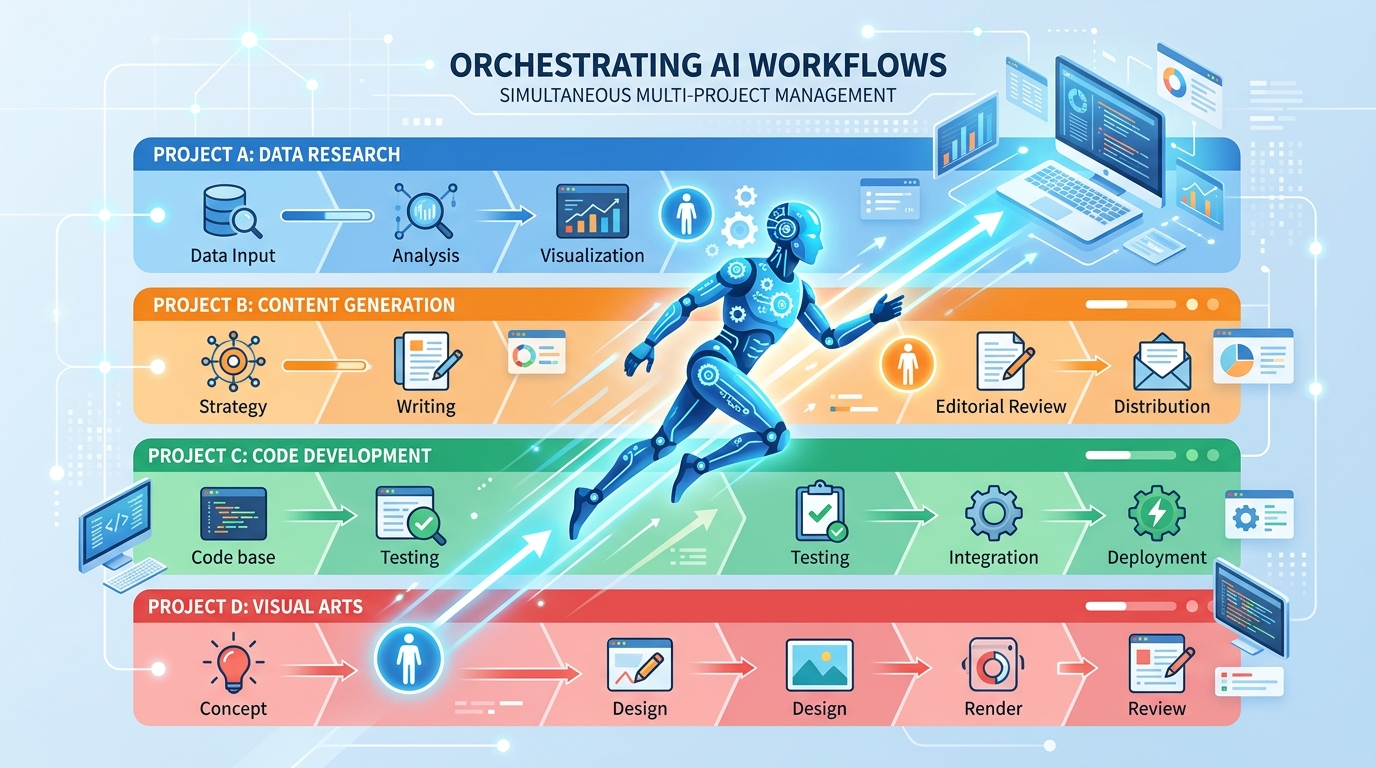
That's not how most people actually work. Developers juggle multiple clients. Freelancers run parallel engagements. Product managers track multiple features across multiple teams. The real challenge isn't using AI — it's using AI across five things at once without everything bleeding together.
This guide is a practical system for that. Not theory — a concrete workflow you can set up today.
Why Multi-Project AI Workflows Break Down
Before the system, it helps to understand exactly where things go wrong.
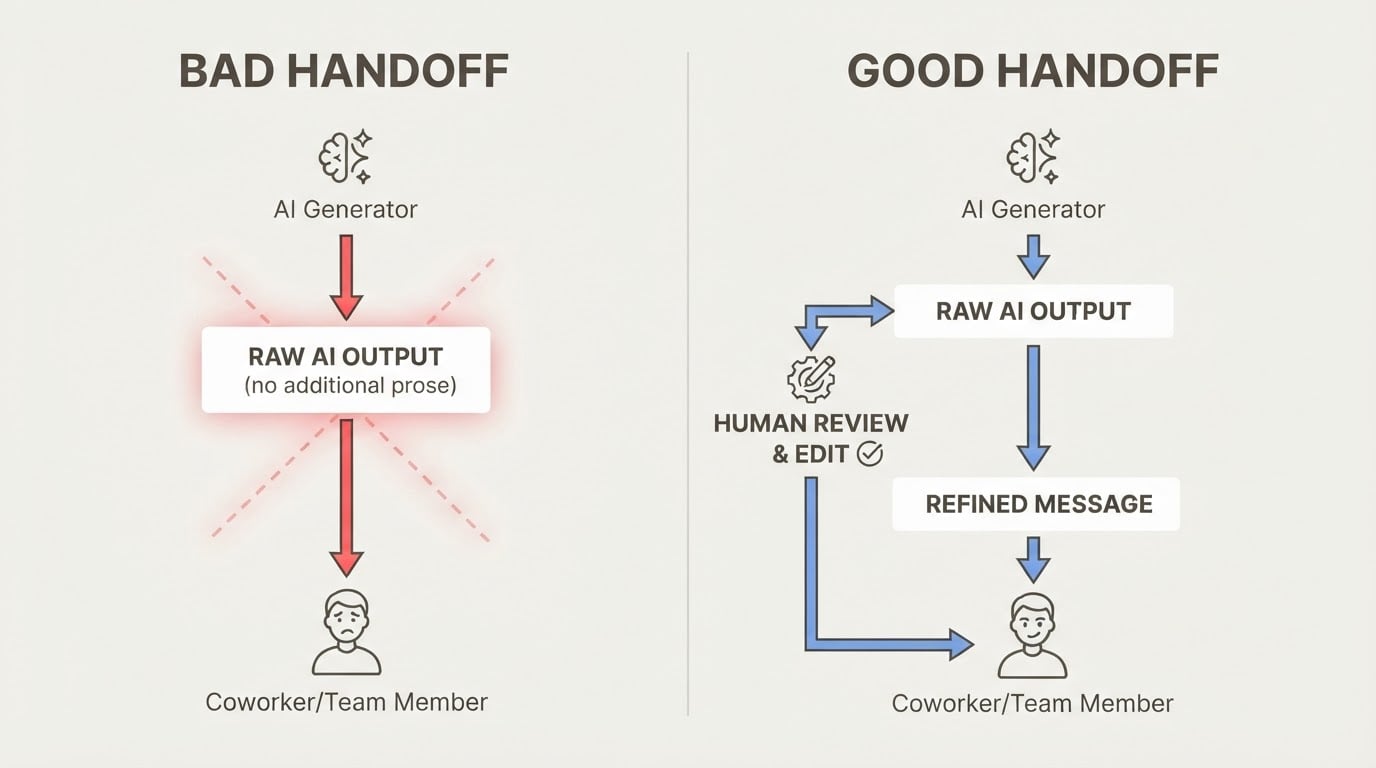
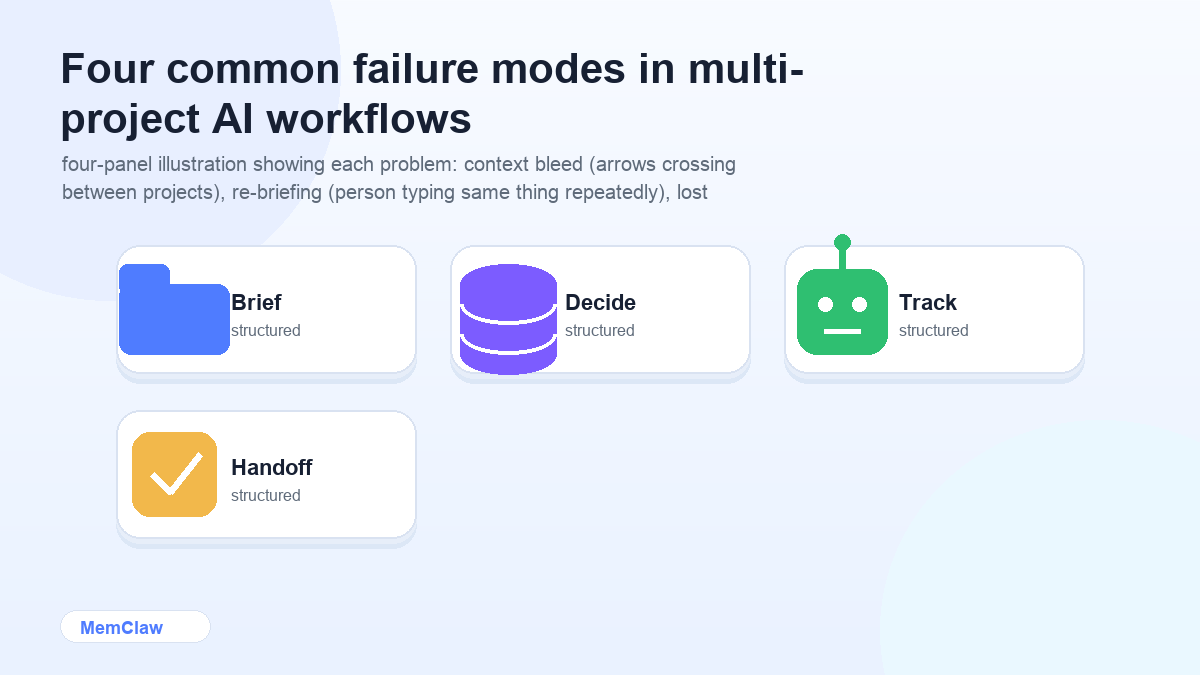
Problem 1: Context bleed You're working on Project A. The agent picks up a pattern, a preference, a constraint from Project B. The output is wrong in a subtle way that takes time to catch. This happens because the agent has no concept of project boundaries — it just knows what's in the current context window.
Problem 2: Re-briefing overhead Every new session, you re-explain the project. Stack, background, current status, what you decided last week. For one project, this is annoying. For five, it's a significant chunk of your day.
Problem 3: Lost decisions You ruled something out two weeks ago. The agent suggests it again. You can't remember exactly why you ruled it out. You either re-litigate the decision or accept something suboptimal. Either way, you lose time.
Problem 4: No task continuity The agent doesn't know what's in progress vs. done vs. blocked. Every session, you reconstruct the current state from memory or scattered notes.
The System: Four Layers
A multi-project AI workflow that actually holds up has four layers. Each one solves a specific failure mode.
Layer 1: Project Isolation
Every project needs a hard boundary. The agent should never be able to confuse Project A with Project B.
The minimum viable version: one directory per project, with a CLAUDE.md or CONTEXT.md in each. Claude Code loads CLAUDE.md automatically when you work in that directory. Other agents need to be told to read the context file at session start.
The better version: a persistent workspace per project. The workspace is the boundary — opening it tells the agent exactly which project it's in, what the stack is, what's been decided, and what's in progress. No manual loading required.
Rule: One session = one project. Never context-switch mid-session. If you need to jump to another project, close the session and open a new one with the correct context.
Layer 2: Decision Logging
Every significant decision needs to be captured in the project's context — not in your head, not in a Slack message, not in a chat history you'll never find again.
What counts as a significant decision:
- Technology or library choices
- Scope changes
- Things you explicitly ruled out (and why)
- Client preferences or constraints
- Architectural choices
The habit: when you make a decision, tell the agent to log it before moving on.
Log this decision: we're going with server-side rendering for the dashboard because the client needs SEO. Client-side was ruled out.
With a persistent workspace, this goes into the workspace automatically and persists across sessions. With a context file, you update it manually — which is fine, as long as you actually do it.
Layer 3: Task State
The agent should always know what's in progress, what's done, and what's next. This isn't about project management software — it's about giving the agent enough state to be useful without you reconstructing it every session.
A simple task state block in your context:
## Current Status
- [ ] Payment webhook handler — in progress
- [x] Auth flow — done
- [ ] Dashboard charts — not started, blocked on design
- [ ] Mobile nav — not started
With a persistent workspace, the agent updates this automatically as you work. With a manual context file, you update it at the end of each session.
End-of-session habit:
Update the task status and summarize what we finished today.
Takes 30 seconds. Means the next session starts with accurate state instead of guesswork.
Layer 4: Session Ritual
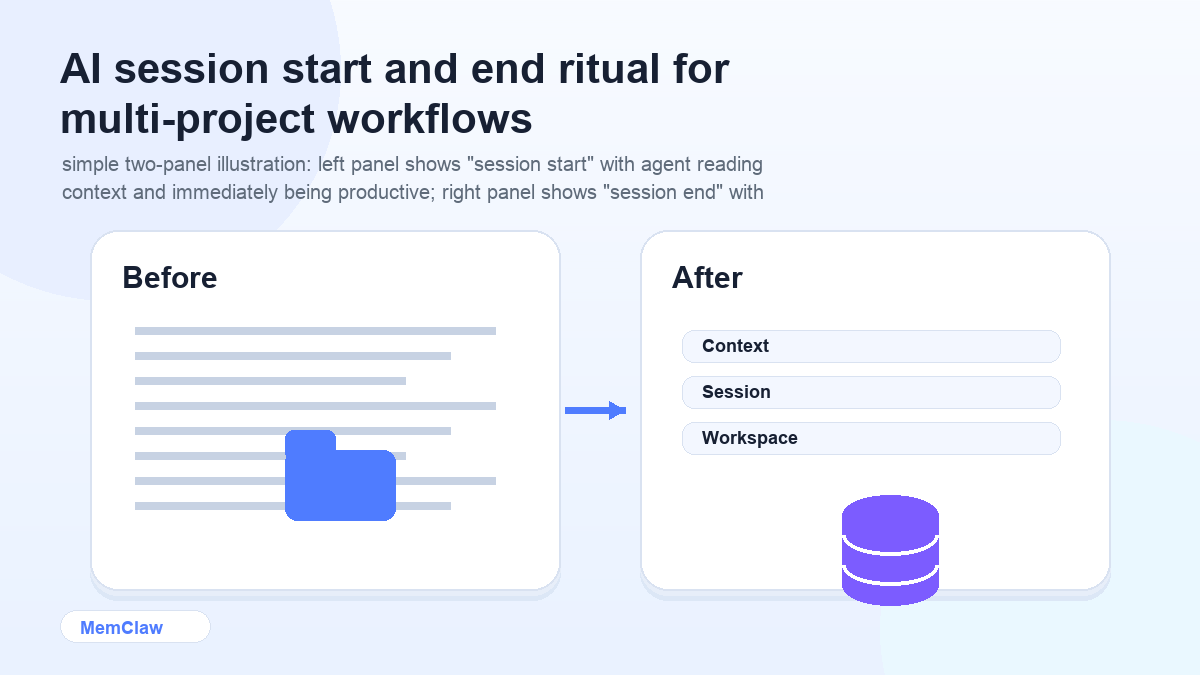
The most important layer is the one that ties the others together: a consistent session start and end ritual.
Session start (30 seconds):
Open the [project name] workspace.
or
Read CONTEXT.md. We're working on [project name] today.
The agent orients itself. You don't re-explain anything. You start working.
Session end (1 minute):
Update task status. Log any decisions we made. Summarize what's in progress.
The workspace or context file is updated. The next session starts clean.
Setting Up the System
Option A: Manual (Free, More Maintenance)
- Create one directory per project
- Add a
CLAUDE.mdto each with: stack, key decisions, current status, preferences - Update it manually at the end of each session
- Start each session with:
Read CLAUDE.md. We're working on [project].
Works well for 1-3 projects. Gets harder to maintain as projects multiply or move fast.
Option B: Persistent Workspaces with MemClaw (Recommended for 3+)
- Install MemClaw:
export FELO_API_KEY="your-api-key-here"
/plugin marketplace add Felo-Inc/memclaw
/plugin install memclaw@memclaw
- Create a workspace per project:
Create a workspace called "project-alpha"
Create a workspace called "client-b"
Create a workspace called "internal-tool"
- Start each session:
Open the project-alpha workspace
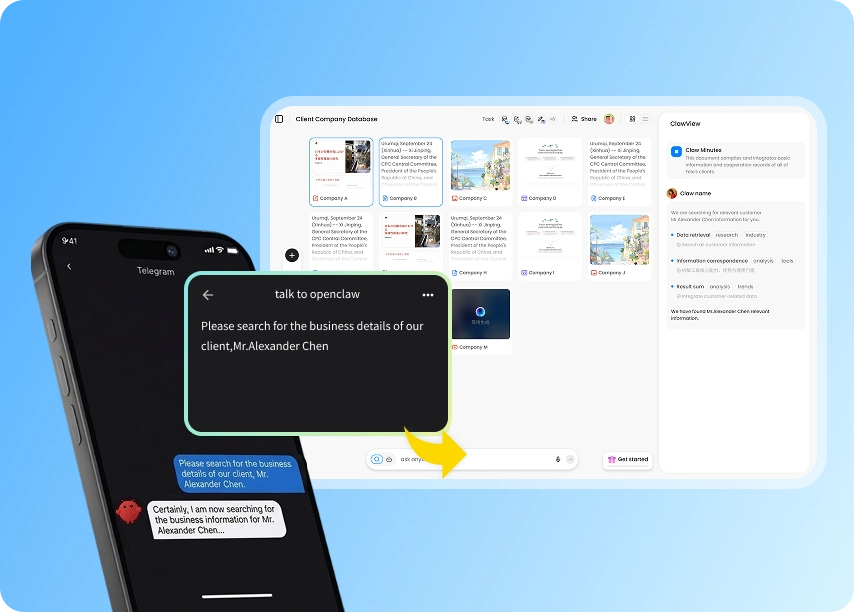
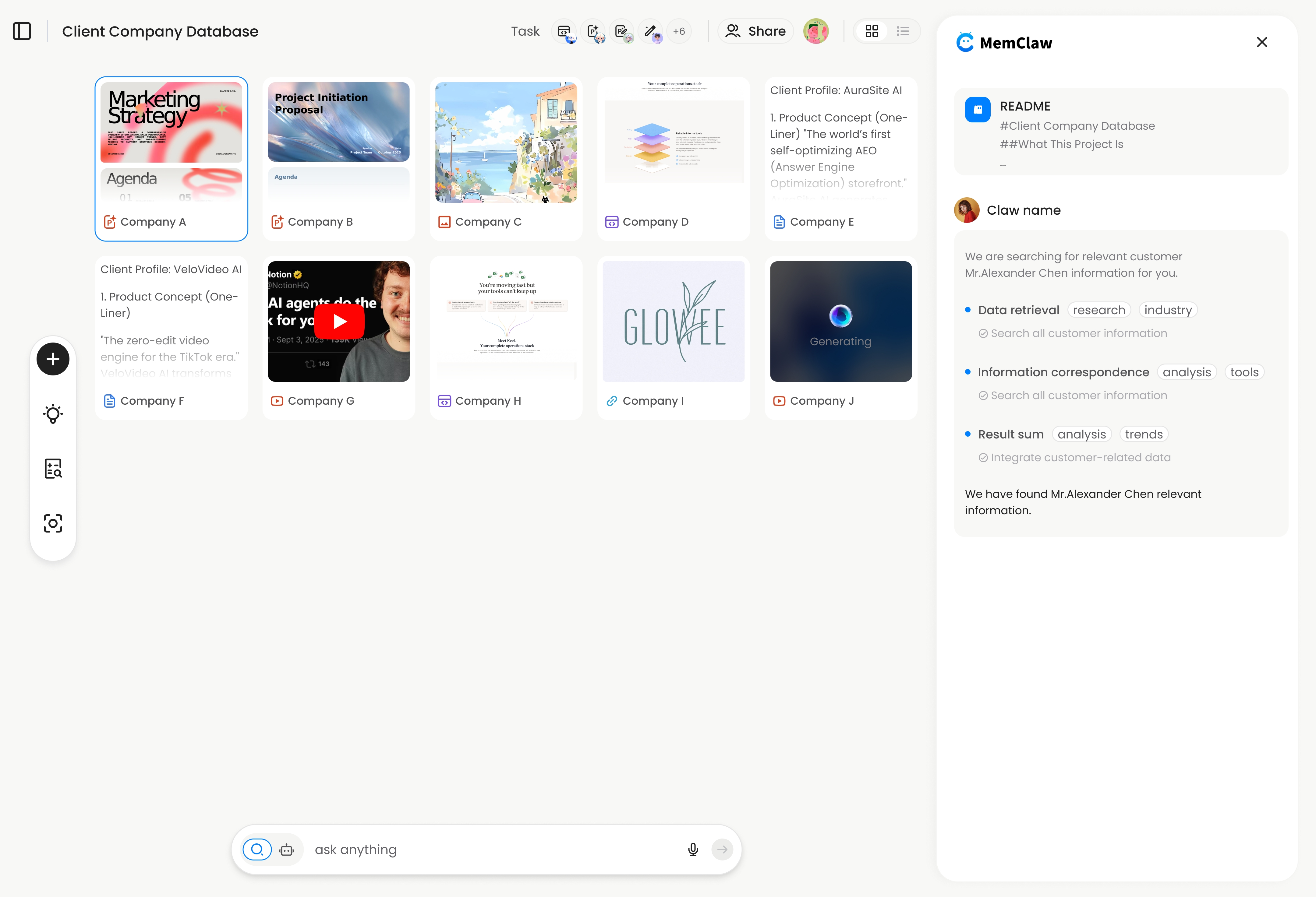
The agent reads the workspace, knows the current state, and starts working. Decisions and task updates happen automatically in the background.
! MemClaw workspace showing project context, tasks, and decisions
Try it: Get started at memclaw.me →
Scaling the System
The four-layer system works at any scale, but a few things change as you add more projects.
3-5 projects: The manual approach starts showing cracks. Context files go stale. You skip the end-of-session update when you're tired. Persistent workspaces pay off here.
5-10 projects: You need a naming convention for workspaces. Something like [client]-[project-type] — acme-dashboard, acme-api, clientb-landing. Makes it easy to open the right one without thinking.
10+ projects: Most of these are probably in maintenance mode. Keep active projects in workspaces; archive inactive ones. The agent doesn't need to know about projects you're not actively working on.
Frequently Asked Questions
How is this different from just using separate browser profiles or chat windows?
Separate windows give you visual separation, but the agent still starts each session with no context. The system above gives the agent actual project knowledge — stack, decisions, task state — not just a clean window.
What if I work on the same project across multiple days with different agents?
With persistent workspaces, the context lives in the workspace, not in the agent. You can use Claude Code one day and OpenClaw the next — both read from the same workspace. With context files, you'd need to make sure both agents can access the same file.
Do I need to follow the session ritual every single time?
For active projects, yes. The ritual is what keeps the context accurate. Skip it a few times and the workspace or context file drifts from reality — which defeats the purpose.
What if a project is on hold for a few weeks?
Leave the workspace or context file as-is. When you come back, open it and ask the agent to summarize the current state. You'll be back up to speed in under a minute instead of trying to remember where you left off.
The System in One Paragraph
One workspace (or context file) per project. One session per project at a time. Log decisions as you make them. Update task state at session end. Start each session by loading context, not by re-explaining everything from scratch.
That's it. The tools are secondary — the habits are what make it work.
Ready to stop losing context between sessions? Set up persistent workspaces with MemClaw →