AI Session Memory: Why It Disappears and What to Do About It
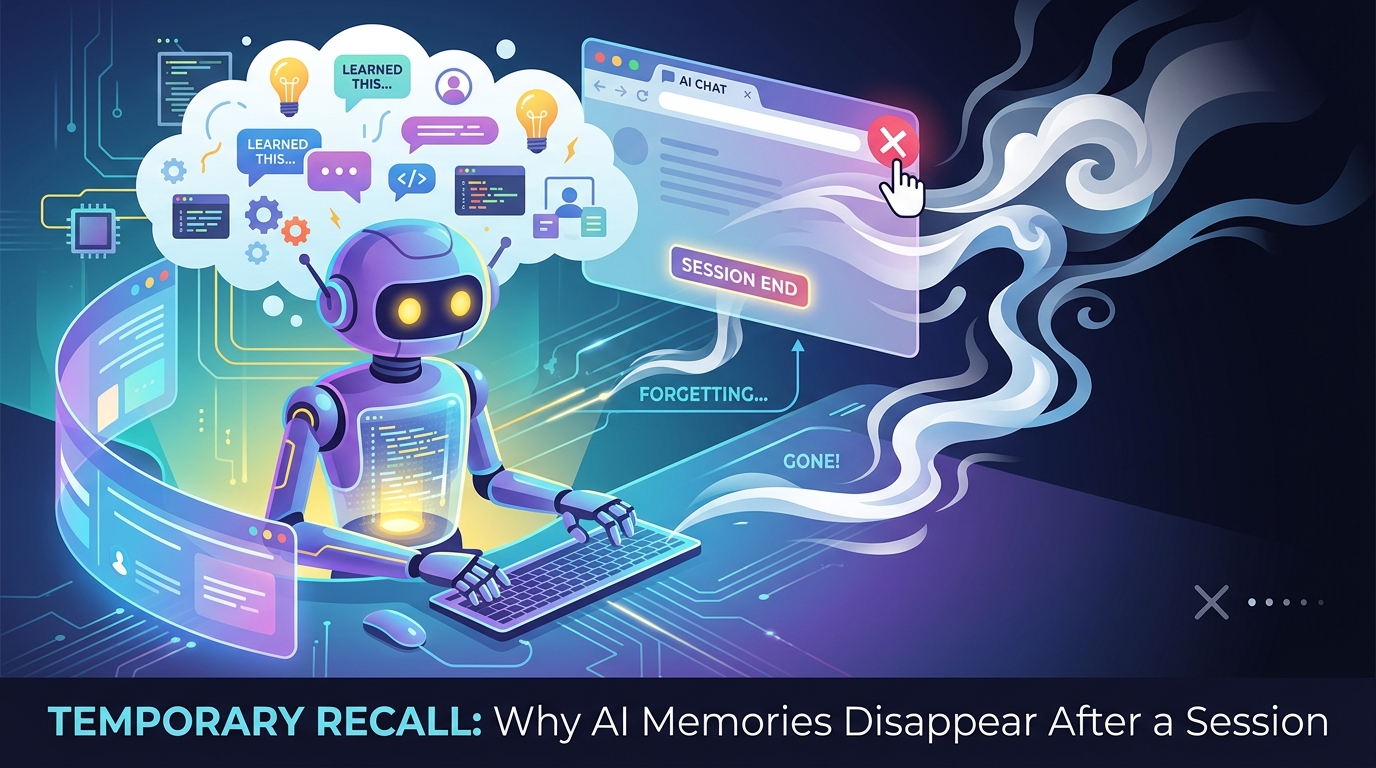
You spend an hour working with an AI agent. You explain the project, establish patterns, make decisions together. The session is productive.
You close it. You come back tomorrow.
The agent has no idea who you are or what you were working on.
This isn't a glitch. It's how AI agents are designed to work. Understanding why helps you build a system that actually solves the problem — instead of fighting the architecture.
Why AI Agents Don't Remember Between Sessions
AI language models are stateless. Each session is an independent inference — the model processes whatever is in the current context window and generates a response. When the session ends, nothing is stored in the model itself.
The context window is temporary working memory. It's powerful — modern models can hold tens of thousands of tokens — but it's ephemeral. Close the session, and it's gone.
This is a deliberate design choice, not an oversight. Stateless models are:
- Easier to scale (no per-user state to manage)
- More predictable (same input → same output)
- Simpler to deploy across many users simultaneously
The trade-off is that persistence has to be handled outside the model — by the application layer, by the user, or by a tool built specifically for this purpose.
What "Memory" Actually Means for AI Agents
When people say they want AI agents to "remember" things, they usually mean one of three different things:
1. Remember facts about me Personal preferences, background, common tools, writing style. This is what ChatGPT Memory and Claude Projects address — storing a set of facts that apply across all your conversations.
2. Remember this project Stack, architecture, decisions made, current task state. This is project-scoped memory — it applies to one specific project, not globally.
3. Remember what we were doing The in-progress state of a specific task or conversation. This is session continuity — picking up exactly where you left off.
Most "AI memory" products focus on #1. But for people doing serious work with AI agents, #2 and #3 are usually the bigger problems.
The Three Approaches to AI Session Memory
Approach 1: In-Context Loading
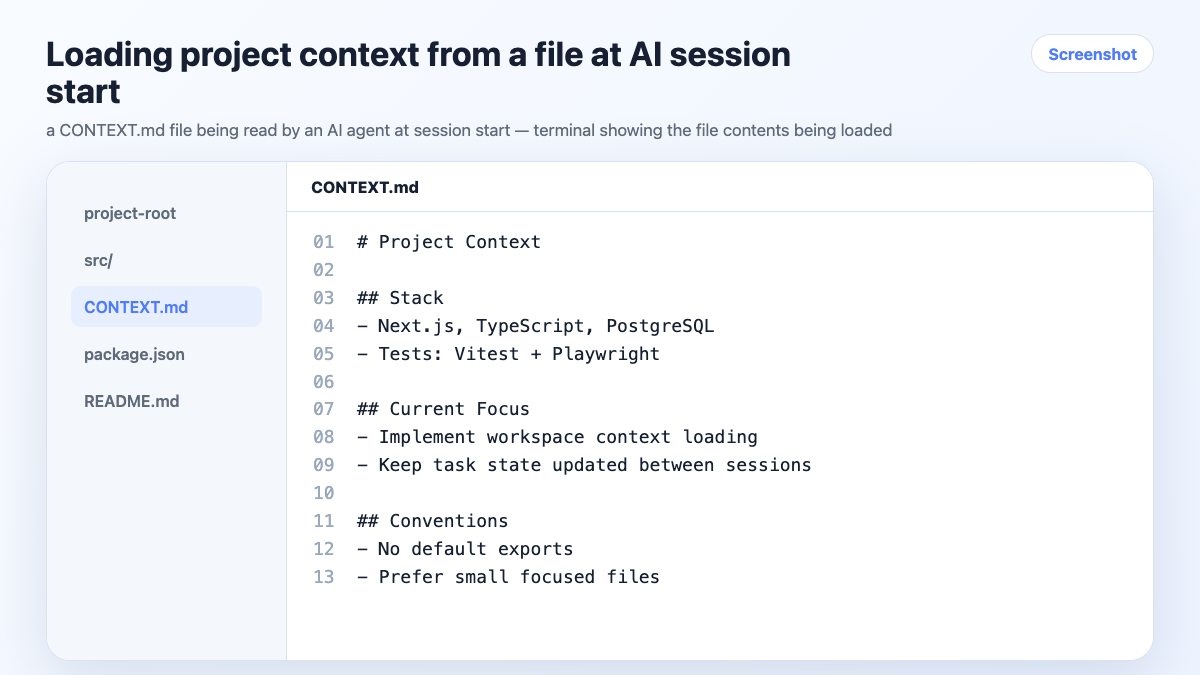
The simplest approach: store context in a file, load it at the start of each session.
Read CONTEXT.md before we start.
The agent reads the file, and the content is now in the context window for this session. When the session ends, the file persists — you just load it again next time.
Pros: Simple, free, works with any agent. Cons: Manual maintenance. You update the file; the agent doesn't do it automatically. Easy to let go stale.
Approach 2: Built-in Model Memory
Some AI products now offer native memory. ChatGPT stores facts about you across conversations. Claude Projects lets you attach files and a system prompt to a persistent project.
Pros: No setup, automatic for supported platforms. Cons: Global scope (not project-specific), limited control, doesn't track task state or decisions automatically.
Approach 3: Persistent Project Workspaces
A structured context store per project that the agent reads and writes automatically. The agent opens the workspace at session start, reads the current state, and updates it as you work.
Pros: Automatic updates, project-scoped isolation, task tracking, works across sessions without manual maintenance. Cons: Requires a tool (like MemClaw) and a small setup investment.
Building a Session Memory System That Works
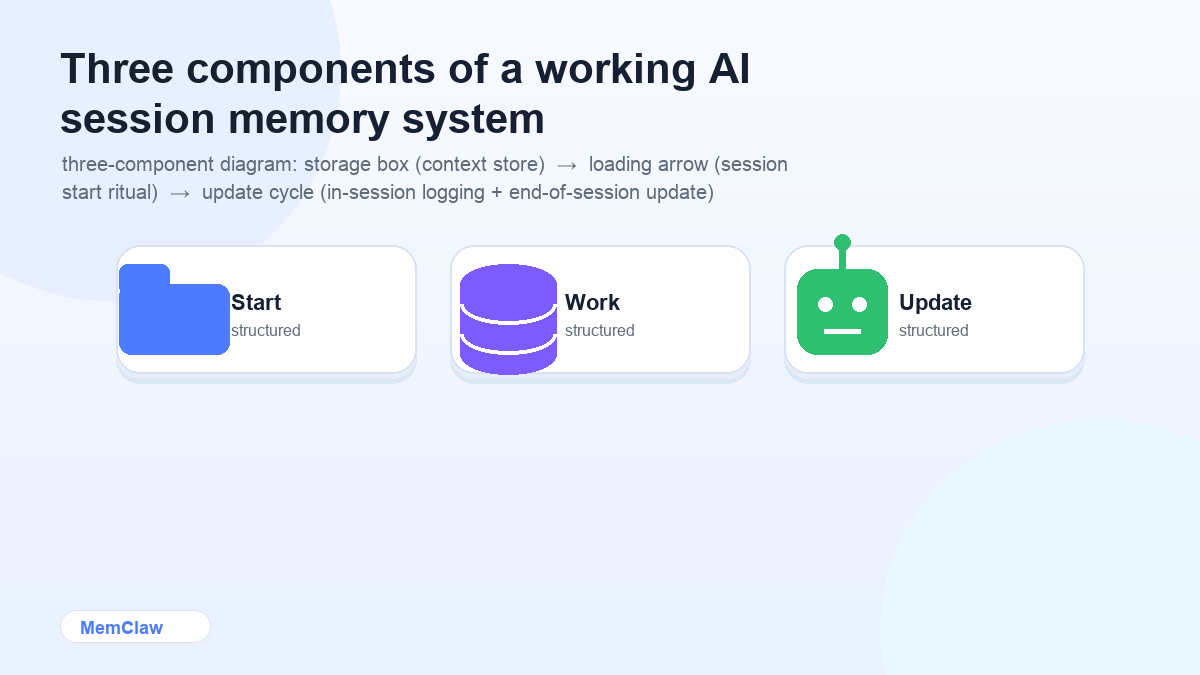
Whatever approach you use, a working session memory system has three components:
Component 1: A place to store context
This is your context file, Claude Project, or persistent workspace. It needs to be:
- Scoped to the project — not mixed with other projects
- Accessible to the agent — the agent can read it at session start
- Writable — the agent (or you) can update it as things change
Component 2: A loading ritual
Every session starts the same way:
Open the [project] workspace.
or
Read CONTEXT.md. We're working on [project] today.
This is non-negotiable. Skip it and the agent starts blind.
Component 3: An update habit
Context that doesn't get updated becomes stale and misleading. Two habits keep it current:
In-session: Log decisions as you make them.
Log this: we're dropping the Redis cache — latency requirements don't justify the complexity.
End-of-session: Update task state before closing.
Update task status. What's done, what's in progress, what's blocked?
How MemClaw Handles Session Memory
MemClaw automates the update component — the part that's hardest to maintain manually.
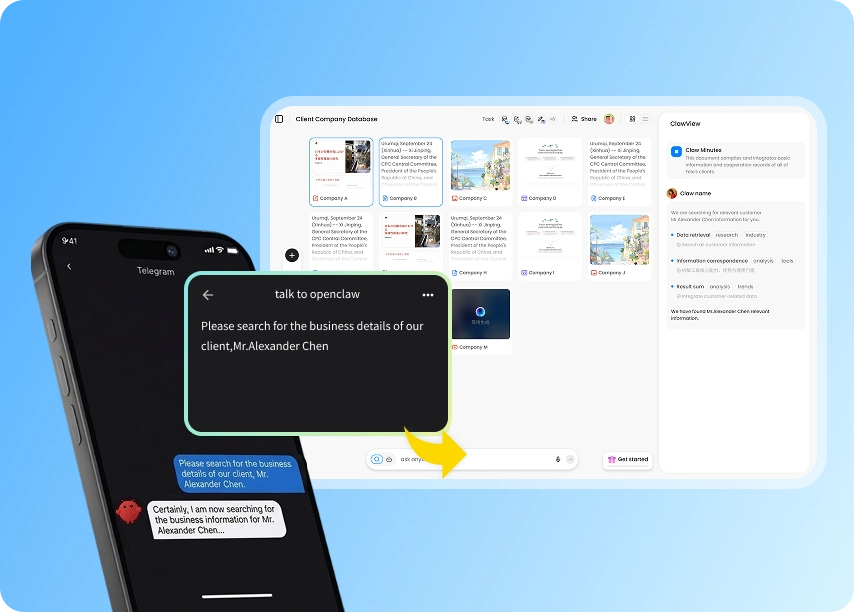
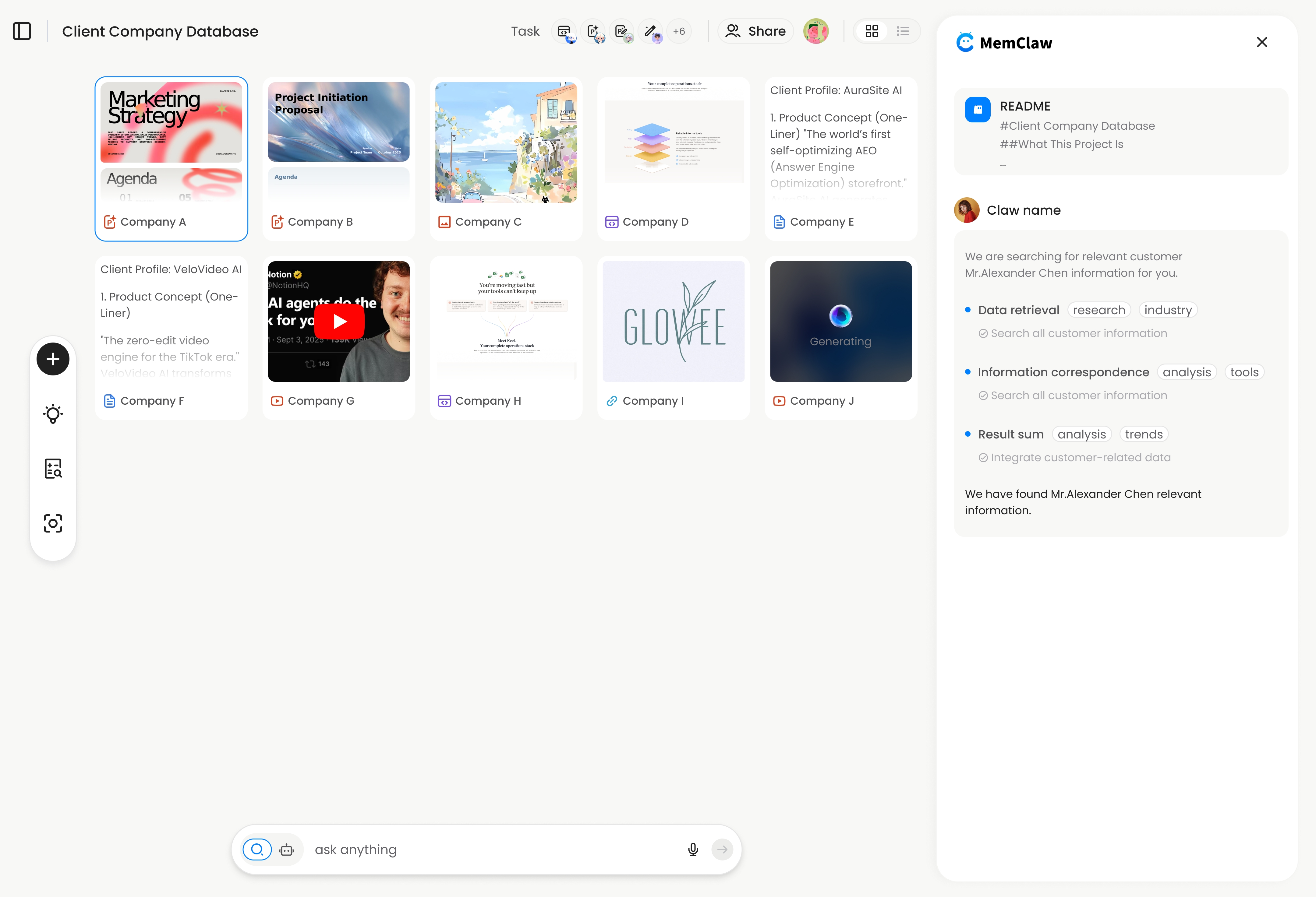
When you open a MemClaw workspace, the agent reads:
- Project background and stack
- Key decisions (and what was ruled out)
- Current task state (done / in progress / blocked)
- Saved artifacts (docs, specs, URLs)
As you work, the agent updates the workspace automatically. Decisions get logged. Task state gets updated. You don't have to remember to do it.
At the start of the next session:
Open the [project] workspace
Full context restored in about 8 seconds. The agent knows exactly where things stand.
! MemClaw workspace restoring full project context at session start
Try it: Get started at memclaw.me →
Common Mistakes That Break Session Memory
Mistake 1: Updating context manually and forgetting
You make a decision. You plan to update the context file later. You forget. Next session, the agent uses the old information.
Fix: log decisions in-session, immediately, before moving on.
Mistake 2: One context file for multiple projects
You keep a single CONTEXT.md with notes from all your projects. The agent can't tell which parts apply to the current project.
Fix: one context file (or workspace) per project, strictly.
Mistake 3: Skipping the loading ritual under time pressure
You're in a hurry. You skip the context load and just start working. The agent makes wrong assumptions. You spend more time correcting than you saved.
Fix: make the loading ritual a hard rule, not an optional step.
Mistake 4: Letting context files grow without pruning
Over time, context files accumulate outdated decisions, completed tasks, and stale information. The agent uses all of it — including the parts that are no longer true.
Fix: review and prune context files periodically. Archive completed projects. Keep active context focused on the current state.
Frequently Asked Questions
Will AI models eventually have built-in persistent memory?
Some already do, in limited forms (ChatGPT Memory, Claude Projects). But project-scoped, automatically-updating memory that tracks task state and decisions is a different problem than global user preferences — and it's not something model providers are likely to solve at the application layer. The workflow layer will always matter.
How much context can I store in a session?
Modern models support large context windows (100k+ tokens for many models). For most project contexts — a few hundred lines of background, decisions, and task state — you're nowhere near the limit. The constraint is usually quality, not quantity: a focused, accurate context file is more useful than a long, stale one.
Does loading context at session start use up my token budget?
Yes, but minimally. A well-maintained context file is typically 200-500 tokens. For most use cases, this is negligible compared to the value of starting the session with accurate context.
What's the difference between a context file and a system prompt?
A system prompt is loaded automatically by the application before every conversation. A context file is a document you tell the agent to read. In Claude Code, CLAUDE.md functions as a project-level system prompt — it loads automatically when you work in that directory. A CONTEXT.md is a regular file you load manually.
The Bottom Line
AI session memory disappears because models are stateless by design. The fix isn't waiting for models to change — it's building a system around them.
The system is simple: a context store per project, a loading ritual at session start, and a habit of updating context as you work. Manual context files work for simple setups. Persistent workspaces automate the maintenance for serious multi-project work.
Ready to stop losing context between sessions? Set up persistent workspaces with MemClaw →