Claude Code Tips and Tricks: Get More Out of Every Session
Claude Code is one of the most capable AI coding tools available. It's also one of the most underused — most people interact with it the same way they'd use a basic chat interface, leaving most of the power on the table.
These tips cover the features, habits, and workflows that separate casual Claude Code users from power users.
Tip 1: Use CLAUDE.md for Automatic Context Loading
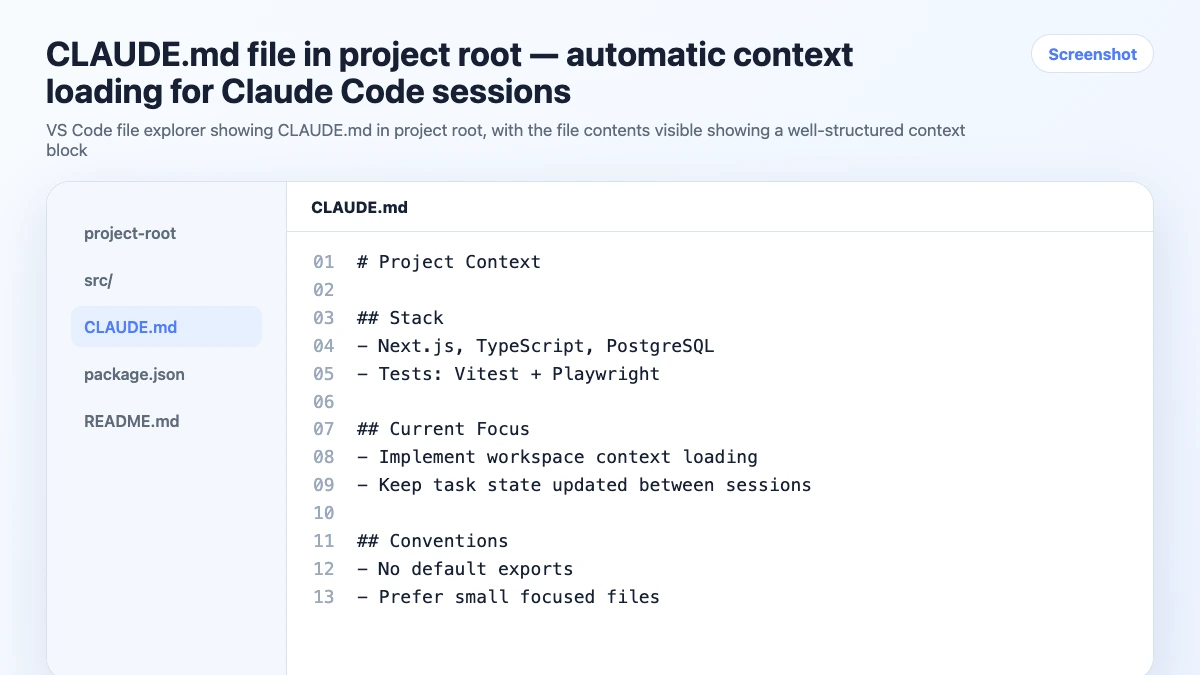
The single highest-leverage Claude Code feature that most people don't use: CLAUDE.md.
Put a CLAUDE.md file in your project root and Claude Code loads it automatically at the start of every session in that directory. No manual prompting. No copy-pasting. The agent starts every session already knowing your stack, conventions, and constraints.
# Project: Checkout Service

## Stack
Node.js 18, Express, TypeScript, PostgreSQL, Paddle

## Conventions
- No default exports
- Async/await only, no .then() chains
- Vitest for tests
- Error handling: always use custom AppError class

## Constraints
- Paddle is the payment processor — do not suggest Stripe
- No new npm dependencies without explicit approval
- All endpoints must have input validation with Zod

## Current Focus
Webhook handler for subscription lifecycle events
Every session in this directory starts with the agent knowing all of this. You go straight to work.
Tip 2: Use Nested CLAUDE.md Files for Subdirectory Context
Claude Code supports CLAUDE.md files at multiple levels. A file in a subdirectory adds context specific to that part of the codebase, on top of the root-level context.
/project
  CLAUDE.md          ← global project context
  /src
    /api
      CLAUDE.md      ← API-specific conventions
    /components
      CLAUDE.md      ← component-specific patterns
The API-level CLAUDE.md might contain:
# API Layer Context

All routes use the standard response format:
{ success: boolean, data: T | null, error: string | null }

Authentication: JWT middleware applied to all routes except /health and /auth/*
Rate limiting: 100 req/min per IP, 1000 req/min per authenticated user

Current endpoints: /users, /products, /orders, /webhooks
When you're working in /src/api, Claude Code loads both the root context and the API context. Precise, layered context without bloating a single file.
Tip 3: Be Specific About What You Want — and What You Don't
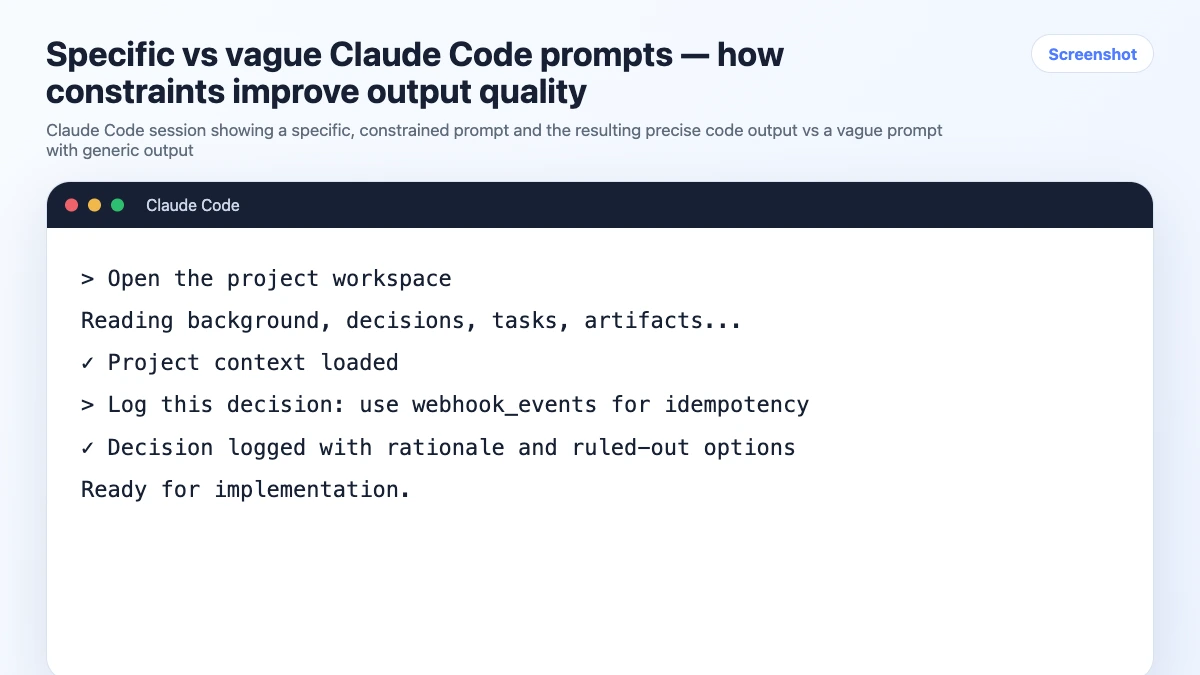
The quality of Claude Code output scales directly with the specificity of your prompt. The most common mistake: describing the problem without specifying the constraints.
Weak:
Add error handling to this function
Strong:
Add error handling to this function. Requirements:
- Catch database connection errors and return a 503 with a retry-after header
- Catch validation errors and return a 400 with field-level error details
- Log all errors to the existing logger (not console.log)
- Don't change the function signature
- Don't add new dependencies
The second prompt produces something you can use. The first produces something you'll rewrite.
Tip 4: Use /clear to Reset Context Mid-Session
When a session goes sideways — wrong assumptions accumulated, bad output in the context window — use /clear to reset without closing the session.
/clear
This clears the conversation history but keeps your CLAUDE.md context. You start fresh without losing the session setup.
Useful when:
- The agent is stuck in a wrong direction and keeps repeating the same mistake
- You've switched to a significantly different part of the codebase
- A long session is producing degraded output (context window filling up)
Tip 5: Reference Files Directly Instead of Pasting
Instead of pasting code into the chat, reference files directly:
Look at src/api/webhooks.ts and explain what the idempotency check is doing.
Compare the error handling in src/api/orders.ts and src/api/products.ts.
Which pattern should we standardize on?
Claude Code reads the files directly. You get more accurate analysis (no copy-paste errors) and keep the context window cleaner.
Tip 6: Use Persistent Workspaces for Multi-Project Work
If you're working across multiple projects, CLAUDE.md files handle the static context well — but they don't track task state or log decisions automatically. When you're juggling 3+ projects, that gap adds up.
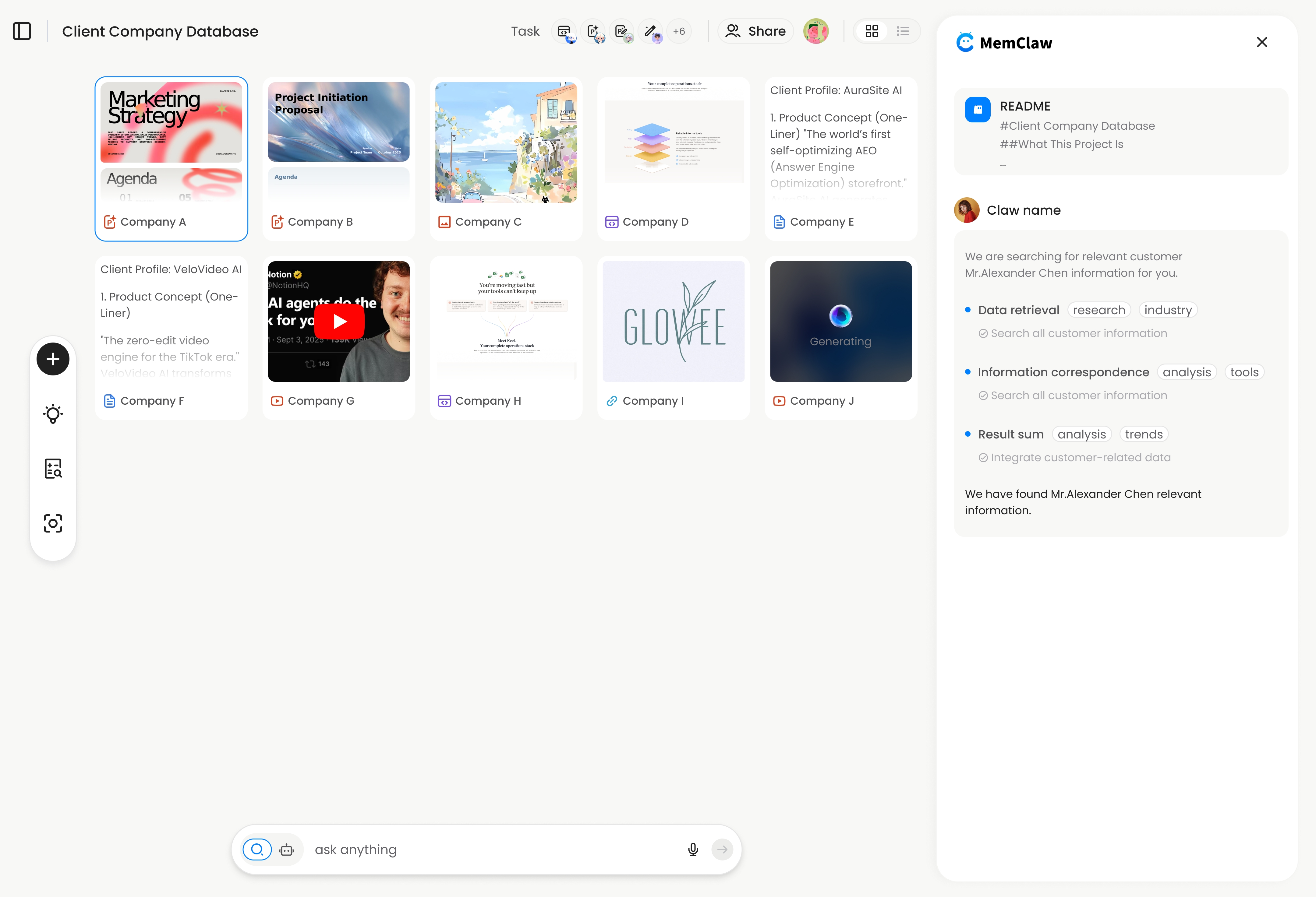
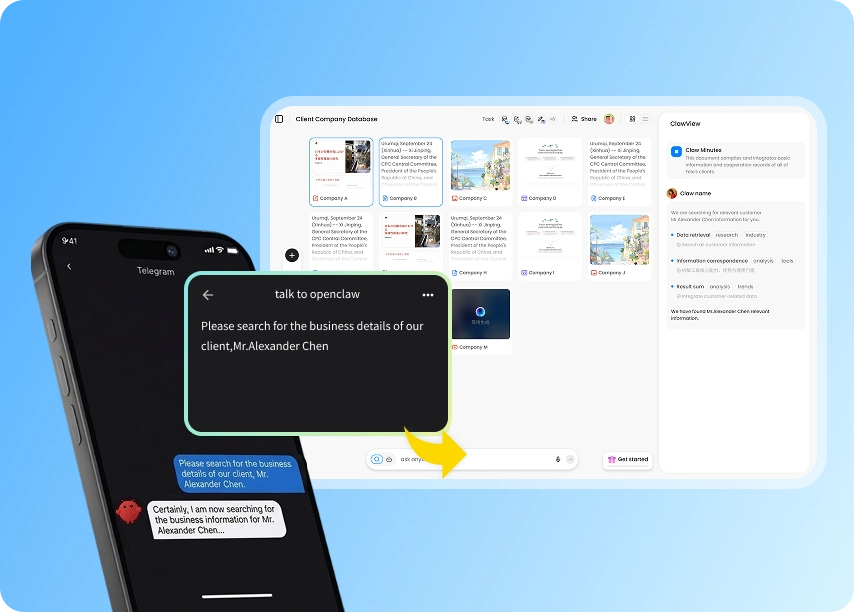
MemClaw adds persistent workspaces to Claude Code. Each workspace stores project context, decisions, and task state — and the agent updates it automatically as you work.
export FELO_API_KEY="your-api-key-here"
/plugin marketplace add Felo-Inc/memclaw
/plugin install memclaw@memclaw
Create a workspace called "checkout-service"
Session start:
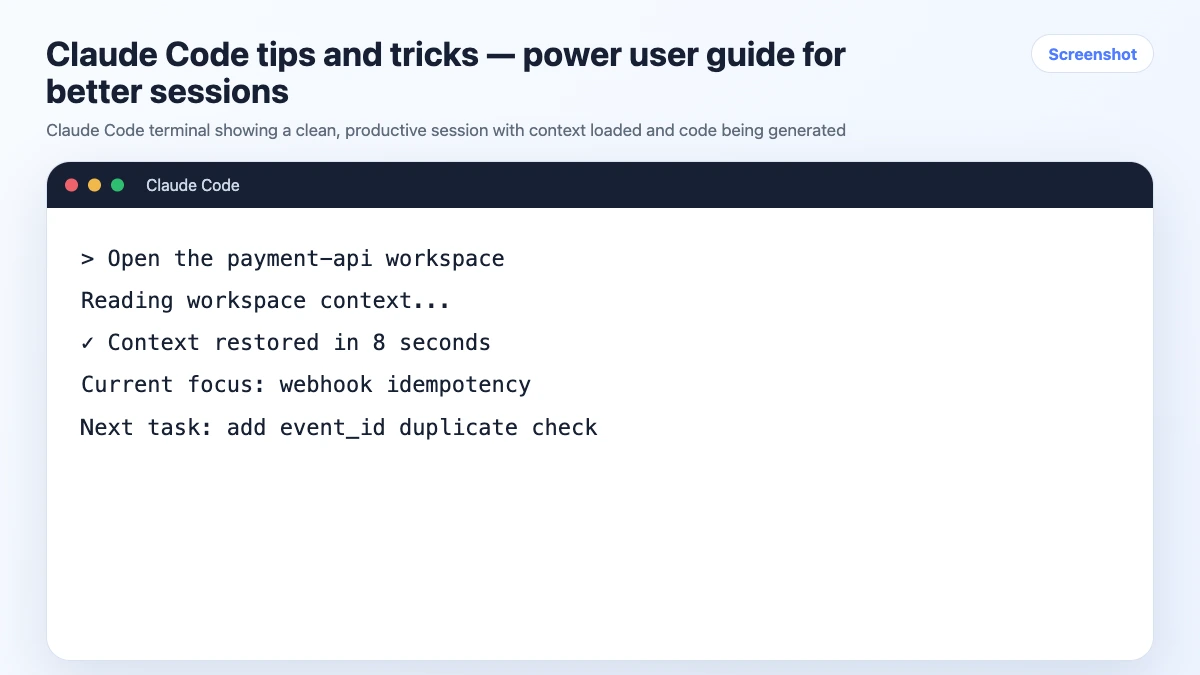
Open the checkout-service workspace
Full context — stack, current tasks, recent decisions — restored in seconds. No re-briefing.
! MemClaw persistent workspace in Claude Code — automatic context management
Try it: Get started at memclaw.me →
Tip 7: Ask for Tests Alongside Code
When Claude Code generates a function, ask for tests in the same prompt:
Write a function that validates a Paddle webhook signature.
Also write Vitest unit tests covering: valid signature, invalid signature,
missing header, and malformed payload.
Getting tests alongside the implementation catches edge cases the implementation might miss — and you end up with both in one shot instead of two separate prompts.
Tip 8: Use "Think Step by Step" for Complex Problems
For architectural decisions, debugging complex issues, or anything where the first answer is likely to be wrong:
Think step by step before answering.

We're seeing intermittent 500 errors on the /orders endpoint under load.
The errors don't appear in low-traffic testing. Walk through the most likely
causes given this stack: Node.js, Express, PostgreSQL with connection pooling,
deployed on Railway.
The step-by-step instruction produces more thorough reasoning and catches cases where a quick answer would miss the actual root cause.
Tip 9: Log Decisions In-Session
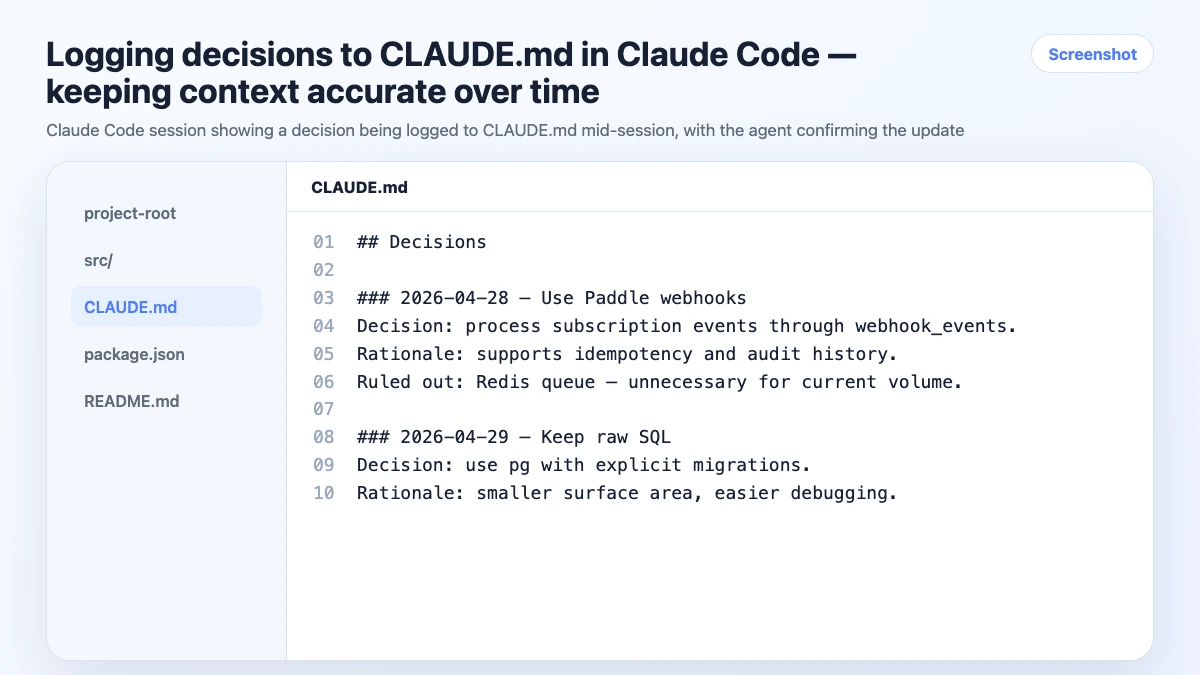
When you make a significant decision during a session — architecture choice, library selection, something you ruled out — log it before moving on:
Log this in CLAUDE.md under Decisions:
Using idempotency keys stored in webhook_events table.
Ruled out Redis — too much operational overhead for current scale.
The agent updates the file. Next session, the decision is there. You don't re-litigate it.
This habit is the difference between a CLAUDE.md that stays accurate over time and one that goes stale after two weeks.
Tip 10: End Sessions With a Status Update
Before closing any session:
Update the Current Focus section in CLAUDE.md.
What did we finish? What's still in progress? What's the next task?
60 seconds. Means the next session starts with accurate state instead of you trying to remember where you left off.
Tip 11: Use Claude Code for Code Review, Not Just Generation
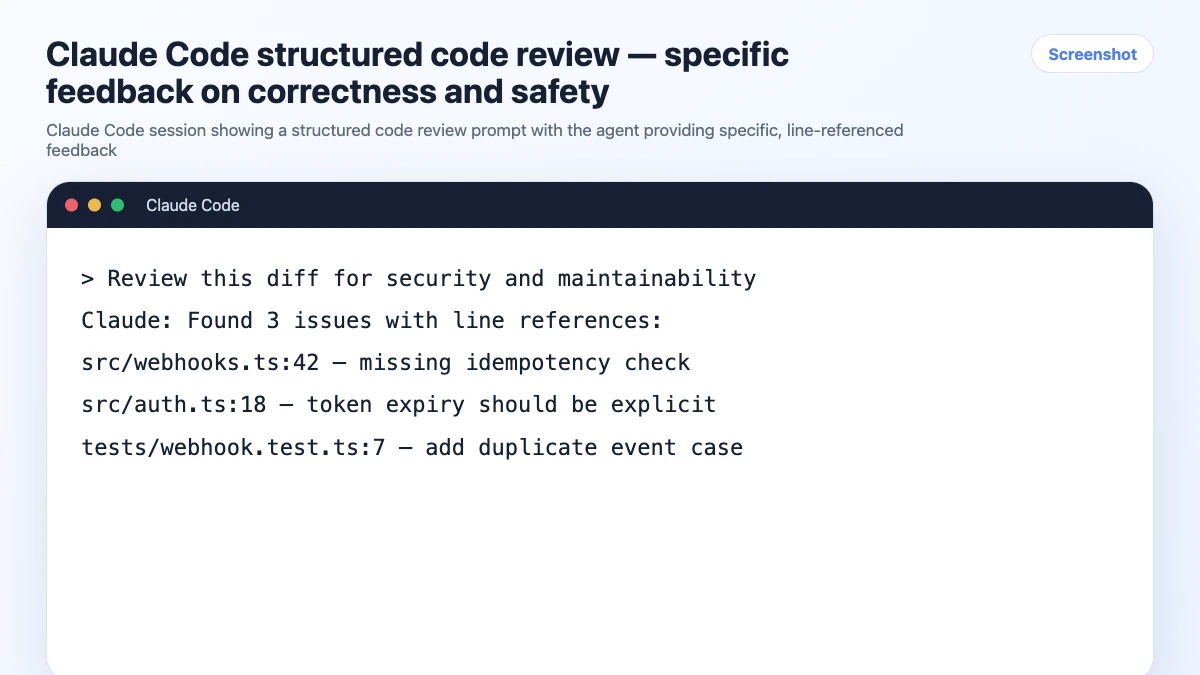
Claude Code is underused as a reviewer. A structured review prompt catches more than a vague one:
Review this PR diff for:
1. Logic errors or edge cases I might have missed
2. Security issues (injection, auth bypass, exposed data)
3. Performance problems under load
4. Anything that would fail in production

Be specific about line numbers. Don't comment on style — focus on correctness and safety.
Tip 12: Keep One Project Per Session
The rule that prevents the most wasted time: one session, one project.
If you need to jump to another project mid-session, close the session and open a new one in the correct directory. The context switch takes 30 seconds. The cleanup from a mixed-context session takes much longer.
Quick Reference: Claude Code Slash Commands
| Command | What it does | |---------|-------------| | /clear | Clear conversation history, keep CLAUDE.md context | | /help | Show available commands | | /cost | Show token usage for current session | | /model | Switch model mid-session | | /plugin install | Install a plugin (e.g., MemClaw) | | /plugin list | List installed plugins |
Frequently Asked Questions
How long should my CLAUDE.md be?
Focused and accurate beats long and comprehensive. A 200-line CLAUDE.md that's kept current is more useful than a 500-line one that's 30% outdated. Aim for the minimum context the agent needs to work correctly — stack, key decisions, current focus, hard constraints.
Should I commit CLAUDE.md to the repo?
Yes, if the context is project-specific and useful for anyone working on the project. No, if it contains personal preferences or sensitive information. Many teams commit a CLAUDE.md with project conventions and keep personal preferences in a global ~/.claude/CLAUDE.md.
Does CLAUDE.md work with Claude.ai (the web interface)?
No. CLAUDE.md is a Claude Code feature — it's loaded by the CLI tool when you work in a directory. The web interface doesn't have access to your local filesystem.
What's the difference between CLAUDE.md and a system prompt?
A system prompt is set at the application level and applies to every conversation. CLAUDE.md is a project-level file that Claude Code loads automatically for that directory. You can have both — a global system prompt for personal preferences and per-project CLAUDE.md files for project-specific context.
The Short Version
The Claude Code features that make the biggest difference: CLAUDE.md for automatic context loading, /clear for mid-session resets, file references instead of pasting, and the habit of logging decisions and ending sessions with a status update.
For multi-project work, add persistent workspaces. For everything else, the habits above are enough.
Working across multiple projects in Claude Code? Set up persistent workspaces with MemClaw →