How to Manage Multiple Projects in Claude Code Without Losing Context
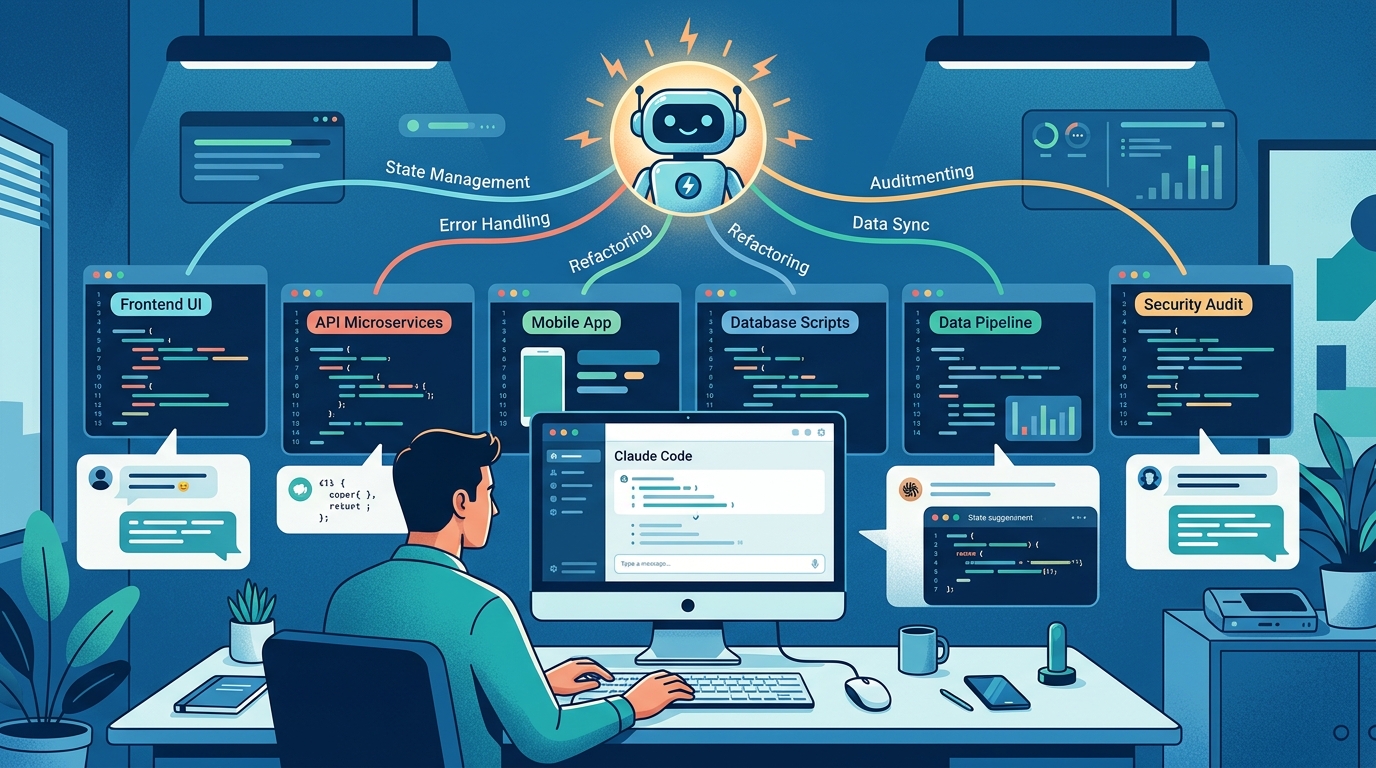
If you're using Claude Code for more than one project, you've probably hit this wall:
You switch from Client A to Client B mid-afternoon. The agent starts referencing the wrong codebase. Or you come back Monday morning and spend 15 minutes re-explaining what you were building, what stack you're using, and what you decided last Thursday.
Claude Code is powerful. But it has no built-in concept of "projects." Every session is a blank slate.
This guide covers practical approaches to managing multiple projects in Claude Code — from simple workarounds to a proper persistent workspace setup.
The Core Problem: Claude Code Has No Project Scope
Claude Code's context window is session-scoped. When you close a session, everything in it — your decisions, your preferences, your in-progress tasks — is gone. The next session starts fresh.
For a single project, this is manageable. You can keep a CONTEXT.md in the repo and tell the agent to read it at the start of each session.
For multiple projects, it breaks down fast:
- Context bleed — the agent mixes up details from different projects
- Re-briefing overhead — you repeat the same background every session
- Lost decisions — "we already ruled that out" becomes a common phrase
- No task continuity — the agent doesn't know what's in progress vs. done
Approach 1: Per-Project CONTEXT.md Files
The simplest approach. Create a CONTEXT.md in each project root:
# Project: Client Dashboard

## Stack
- Frontend: Next.js 14, Tailwind
- Backend: FastAPI, PostgreSQL
- Hosting: Vercel + Railway

## Key Decisions
- Using Paddle (not Stripe) for payments — decided 2026-03-15
- No Redux, using Zustand for state
- Auth via Clerk

## Current Status
- Payment integration: in progress
- Webhook handler: not started
- Dashboard charts: done

## Preferences
- TypeScript strict mode always on
- No default exports
- Tests with Vitest
At the start of each session, tell the agent:
Read CONTEXT.md before we start.
Pros: Simple, no extra tools, lives in the repo.
Cons: You maintain it manually. The agent won't update it automatically. Easy to let it go stale. Doesn't scale past 3-4 projects.
Approach 2: Project-Specific System Prompts
Claude Code supports custom system prompts via CLAUDE.md files. You can put a CLAUDE.md in each project directory and Claude Code will load it automatically when you work in that directory.
# CLAUDE.md — Client Dashboard

You are working on the Client Dashboard project for Acme Corp.

Stack: Next.js 14, FastAPI, PostgreSQL, Clerk auth, Paddle payments.

Key constraints:
- TypeScript strict mode
- No default exports
- Vitest for tests
- Paddle is the payment processor — do not suggest Stripe

Current focus: Payment webhook integration.
This is better than a manual CONTEXT.md because it loads automatically — you don't have to remember to tell the agent to read it.
Pros: Automatic loading, per-directory scoping, no extra tools.
Cons: Still manual maintenance. Doesn't track tasks or decisions over time. You have to keep it updated as the project evolves.
Approach 3: Persistent Workspaces with MemClaw
For serious multi-project work, the CLAUDE.md approach eventually hits its limits. You're still maintaining context manually, and there's no automatic task tracking or decision logging.
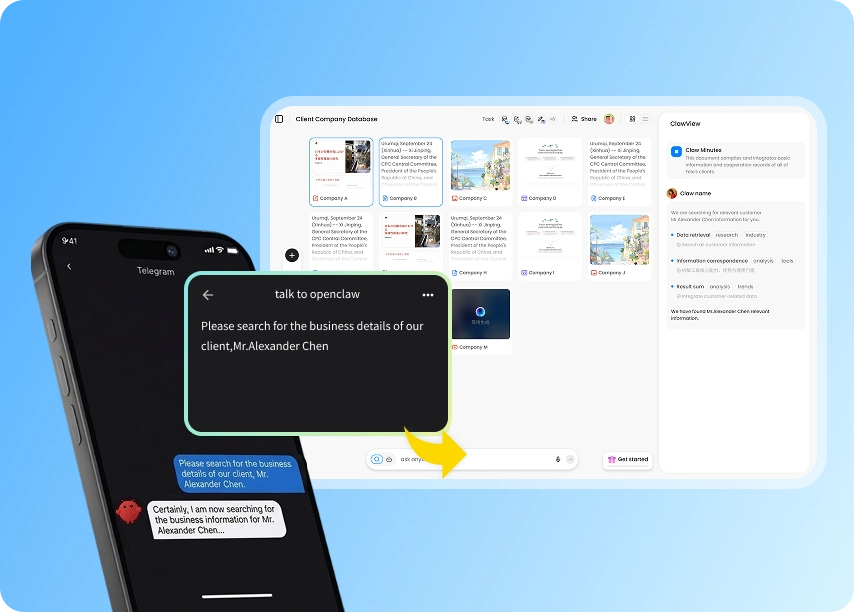
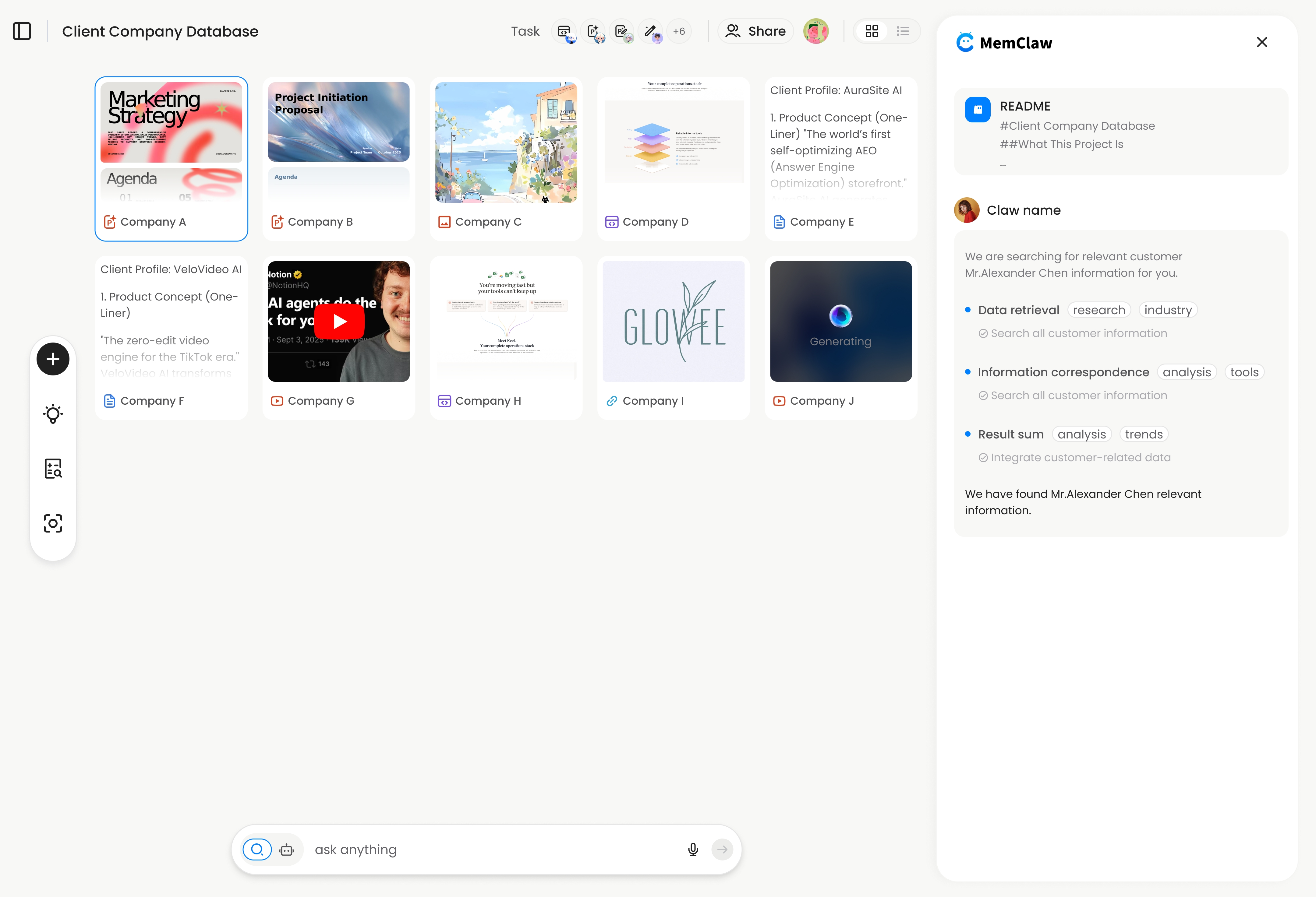
MemClaw adds persistent project workspaces to Claude Code. Each workspace is a structured context store scoped to one project — the agent reads it at session start and updates it as you work.
What a workspace contains:
Living README — background, stack, preferences, decisions
- Tasks — automatically tracked as the agent works
- Artifacts — documents, URLs, reports attached to the project
Setup:
# 1. Set API key
export FELO_API_KEY="your-api-key-here"

# 2. Install in Claude Code
/plugin marketplace add Felo-Inc/memclaw
/plugin install memclaw@memclaw
Then create a workspace for each project:
Create a workspace called "client-dashboard"
Create a workspace called "internal-api"
Create a workspace called "side-project"
At the start of each session, open the relevant workspace:
Open the client-dashboard workspace
The agent restores full project context — stack, decisions, in-progress tasks — in about 8 seconds. No re-briefing.
! MemClaw workspace context restoration
Try it: Get started at memclaw.me →
Comparing the Three Approaches
| | CONTEXT.md | CLAUDE.md | MemClaw Workspace | |---|---|---|---| | Auto-loads | ❌ Manual | ✅ Yes | ✅ Yes | | Auto-updates | ❌ Manual | ❌ Manual | ✅ Yes | | Task tracking | ❌ No | ❌ No | ✅ Yes | | Multi-project isolation | ⚠️ Partial | ✅ Yes | ✅ Yes | | Works across agents | ❌ No | ❌ No | ✅ Yes | | Setup effort | Low | Low | Low |
For 1-2 projects with slow-moving context, CLAUDE.md is fine. For 3+ projects or fast-moving work where decisions and tasks change frequently, persistent workspaces pay off quickly.
Practical Workflow for Multiple Projects
Regardless of which approach you use, these habits help:
1. Always name the project at session start
We're working on [project name] today. [Load context / open workspace.]
This forces the agent to orient itself before diving in.
2. Log decisions as you make them
When you make a significant decision — architecture choice, library selection, scope change — explicitly tell the agent to record it:
Log this decision: we're using Paddle instead of Stripe because of EU VAT handling.
With MemClaw, this goes into the workspace automatically. With CLAUDE.md, you update the file manually.
3. End sessions with a status update
Before closing a session:
Summarize what we accomplished today and what's still in progress.
Use that summary to update your context file or workspace. Future-you will thank you.
4. Keep one project per session
Resist the urge to context-switch mid-session. If you need to jump to another project, close the session, open a new one, and load the correct context. Mixing projects in one session is how context bleed happens.
Frequently Asked Questions
Can I use Claude Code for multiple projects in the same directory?
Technically yes, but it's a bad idea. CLAUDE.md is directory-scoped, so if you're working in a shared parent directory, the agent has no way to distinguish between projects. Keep each project in its own directory.
How do I switch between projects quickly?
With CLAUDE.md: just cd into the project directory and start a new session. With MemClaw: open a new session and say "open the [project name] workspace." Either way, the switch takes seconds — the overhead is in re-loading context, not in the tool itself.
What if my projects share code or libraries?
You can note shared dependencies in each project's context file. The agent will know about them within that project's session. There's no automatic cross-project linking — and that's intentional. Isolation is the point.
Does MemClaw work with OpenClaw too?
Yes. MemClaw workspaces are agent-agnostic. If you use both Claude Code and OpenClaw across your projects, they share the same workspace. Context you build in one agent is available in the other.
Summary
Managing multiple projects in Claude Code comes down to one thing: giving the agent a reliable way to know which project it's in and where things stand.
- For simple setups:
CLAUDE.mdper project directory - For serious multi-project work: persistent workspaces that auto-load and auto-update
The manual approaches work until they don't. Once you're maintaining 4+ projects and context files are going stale, it's time for a better system.
Stop re-briefing your agent every Monday. Set up persistent workspaces with MemClaw →