OpenClaw Tips: How to Get More Out of Every Session
OpenClaw is fast. It's flexible. It runs anywhere you have a terminal. But like any AI coding agent, it has a fundamental limitation: every session starts from scratch.
If you're using OpenClaw seriously — across multiple projects, multiple clients, or just long-running work — the default setup leaves a lot on the table. These tips cover the workflow habits and tools that make a real difference.
Tip 1: Always Load Context Before You Start
The single biggest productivity drain in OpenClaw sessions is the first 10-15 minutes spent re-orienting the agent. You explain the project, the stack, the current status. The agent asks clarifying questions. You finally get to actual work.
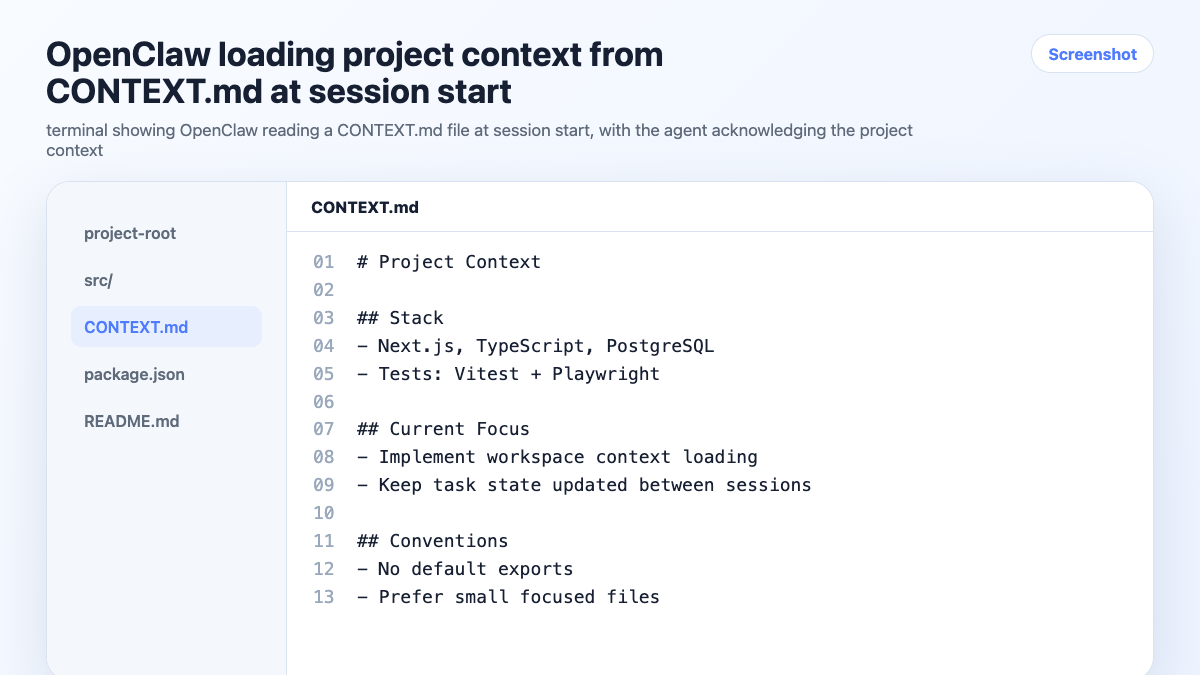
Fix this with a context file the agent reads at session start.
The minimum viable version — a CONTEXT.md in your project root:
# Project: Payment API

## Stack
Node.js, Express, PostgreSQL, Stripe

## Current Status
- Webhook handler: in progress
- Refund flow: not started
- Auth middleware: done

## Key Decisions
- Using Stripe (not Paddle) — confirmed with client 2026-04-10
- No ORM, raw SQL with pg
- JWT auth, tokens expire in 24h

## Preferences
- No default exports
- Async/await over callbacks
- Tests with Jest
Start every session with:
Read CONTEXT.md before we start.
Takes 5 seconds. Saves 15 minutes.
Tip 2: Log Decisions In-Session, Not After
The most common reason context files go stale: you make decisions during a session and forget to update the file afterward.
Fix this by logging decisions in-session, before you forget:
Log this decision in CONTEXT.md: we're dropping the Redis cache layer — latency requirements don't justify the complexity.
The agent updates the file immediately. You don't have to remember to do it later.
Do this for:
- Technology choices (and rejections)
- Scope changes
- Client preferences or constraints
- Anything you'd be annoyed to re-litigate next session
Tip 3: End Sessions With a Status Snapshot
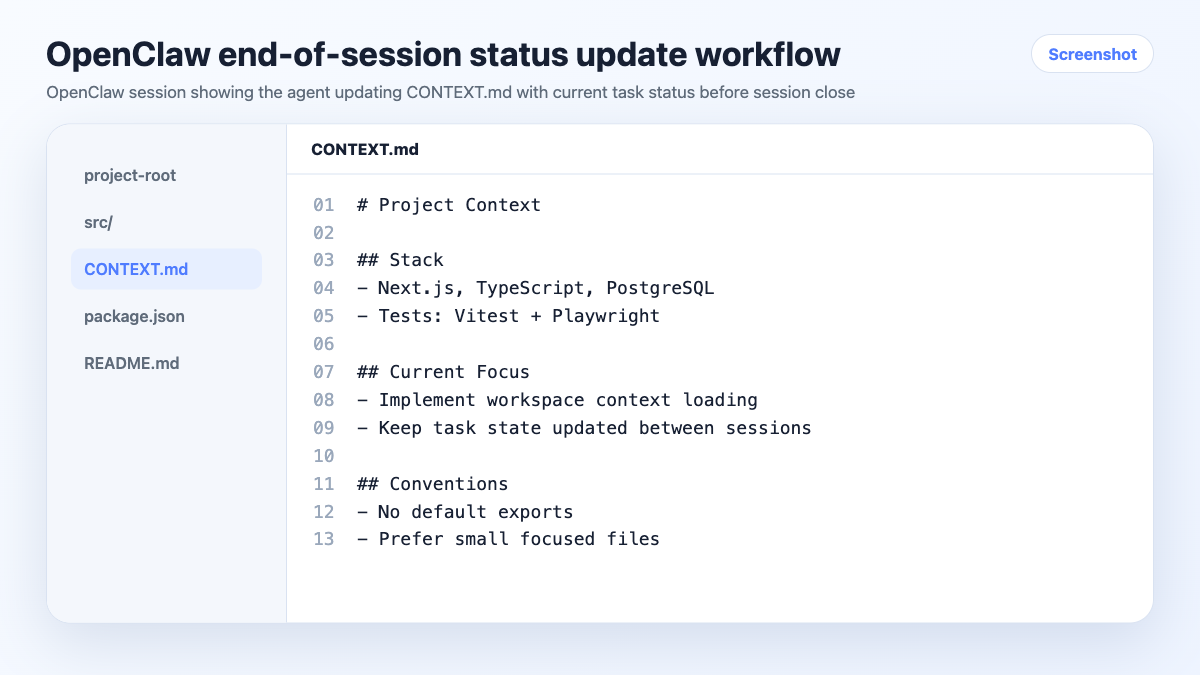
Before you close a session, spend 60 seconds on a status update:
Update the Current Status section in CONTEXT.md with what we finished today and what's still in progress.
The agent writes it. You close the session. Next time you open it, the context is accurate.
This habit is the difference between a context file that's useful and one that's a month out of date.
Tip 4: Use Persistent Workspaces for Multiple Projects
If you're running more than two or three projects in OpenClaw, manual context files start breaking down. You're maintaining multiple files, they drift out of sync, and switching between projects still requires manual loading.
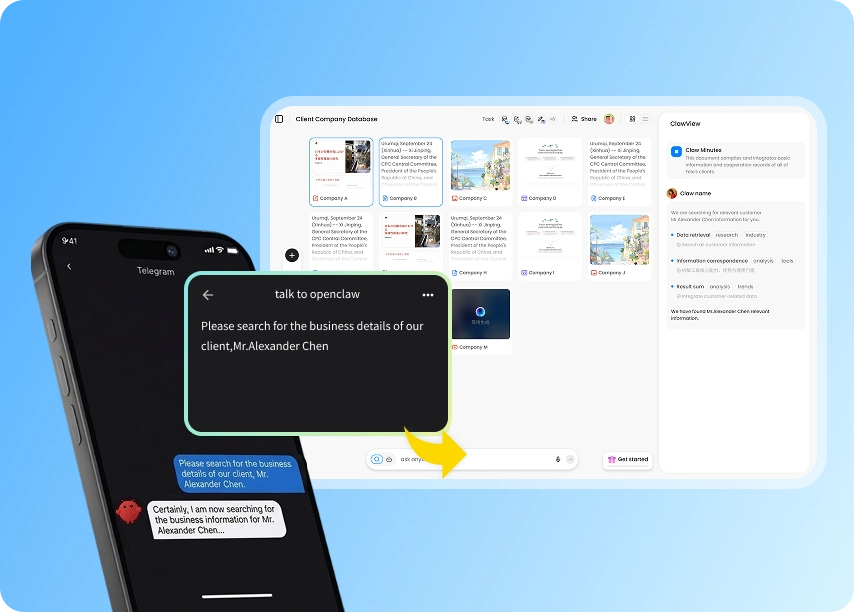
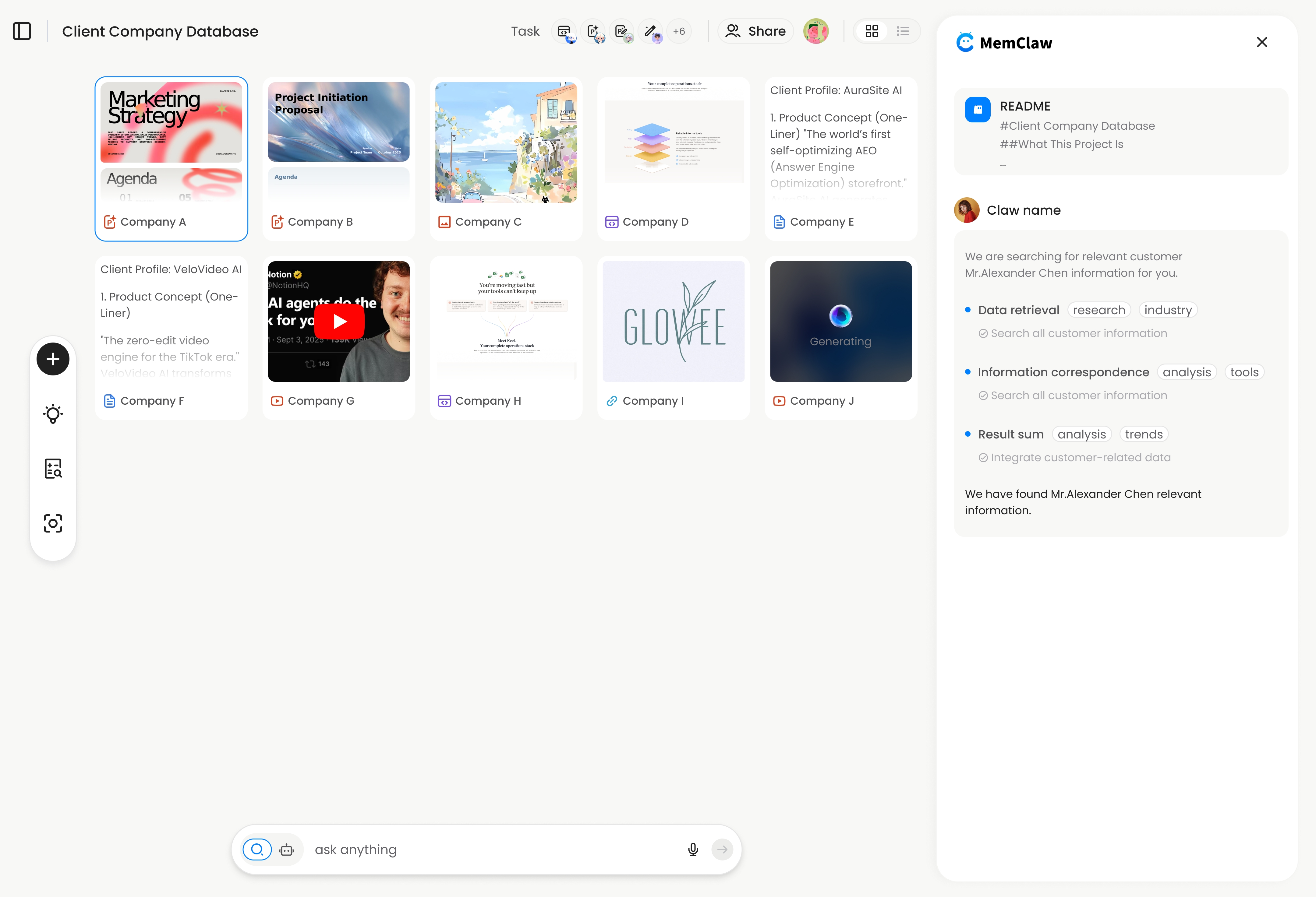
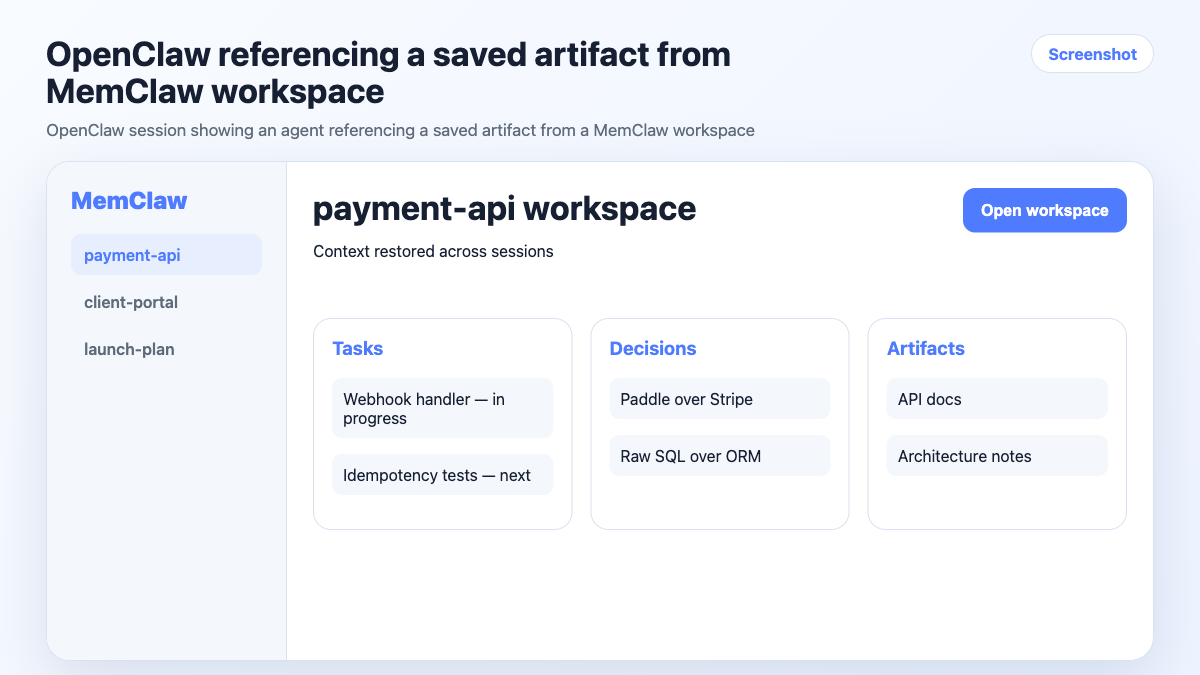
MemClaw adds persistent workspaces to OpenClaw. Each workspace is a structured context store — the agent reads it at session start and updates it automatically as you work. No manual file maintenance.
Install:
# Set API key
export FELO_API_KEY="your-api-key-here"

# Install MemClaw for OpenClaw
bash <(curl -s https://raw.githubusercontent.com/Felo-Inc/memclaw/main/scripts/openclaw-install.sh)
Create a workspace per project:
Create a workspace called "payment-api"
Create a workspace called "client-dashboard"
Create a workspace called "internal-tools"
Start each session:
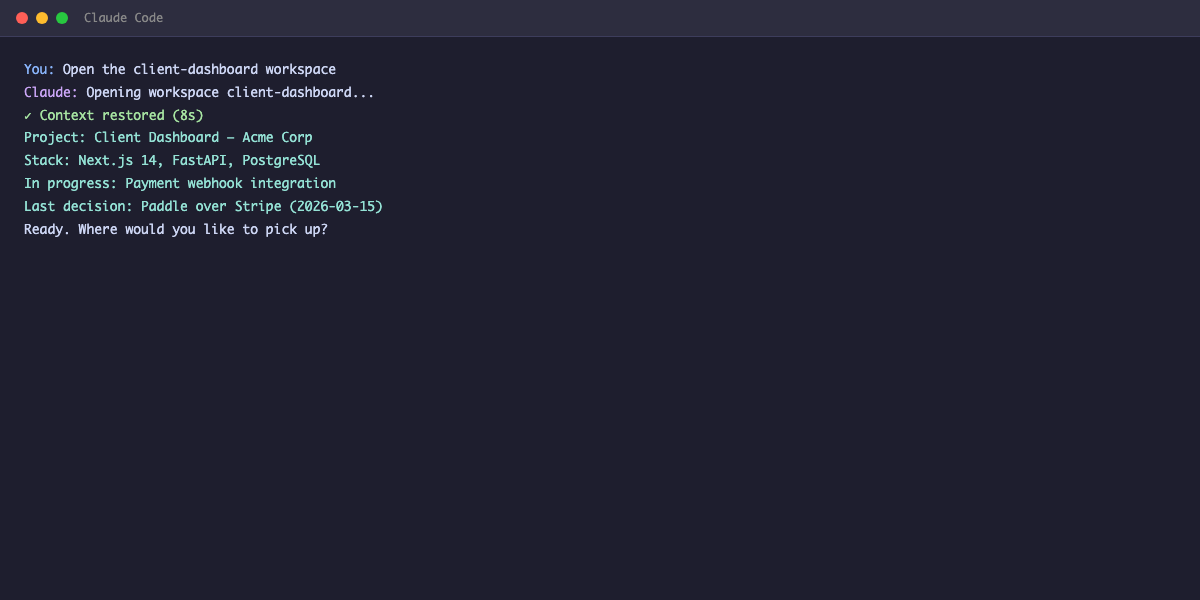
Open the payment-api workspace
Full context — stack, decisions, task state — restored in seconds. The agent knows exactly where things stand without you explaining anything.
! MemClaw persistent workspace in OpenClaw session
Try it: Get started at memclaw.me →
Tip 5: Be Explicit About What You Don't Want
OpenClaw will make reasonable assumptions when you leave things unspecified. Sometimes those assumptions are wrong for your project.
Be explicit about constraints upfront — either in your context file or at session start:
We're not using TypeScript on this project. Don't suggest it.
We're on Node 18, not 20. Don't use features that require 20+.
The client has a no-Redux policy. State management with Zustand only.
The more specific your constraints, the less time you spend correcting suggestions that don't fit.
Tip 6: Use Artifacts for Reference Material
For longer projects, you accumulate reference material — API docs, design specs, client briefs, architecture diagrams. Don't paste these into every session.
With MemClaw workspaces, you can attach artifacts to a project:
Save this as an artifact: [paste API documentation]
Name it "stripe-webhook-docs"
Next session, the agent can reference it:
Pull up the stripe-webhook-docs artifact
Without workspaces, keep a /docs folder in the project and tell the agent which files to read at session start.
Tip 7: Keep One Project Per Session
This one sounds obvious but it's easy to break under deadline pressure.
You're working on Project A. A quick question comes in about Project B. You answer it in the same session. Now the agent has mixed context — Project A's codebase, Project B's question, and no clear boundary between them.
The rule: one session, one project. If you need to switch, close the session and open a new one with the correct context loaded. The context switch takes 30 seconds. The cleanup from a mixed session takes much longer.
Tip 8: Share Workspaces With Teammates
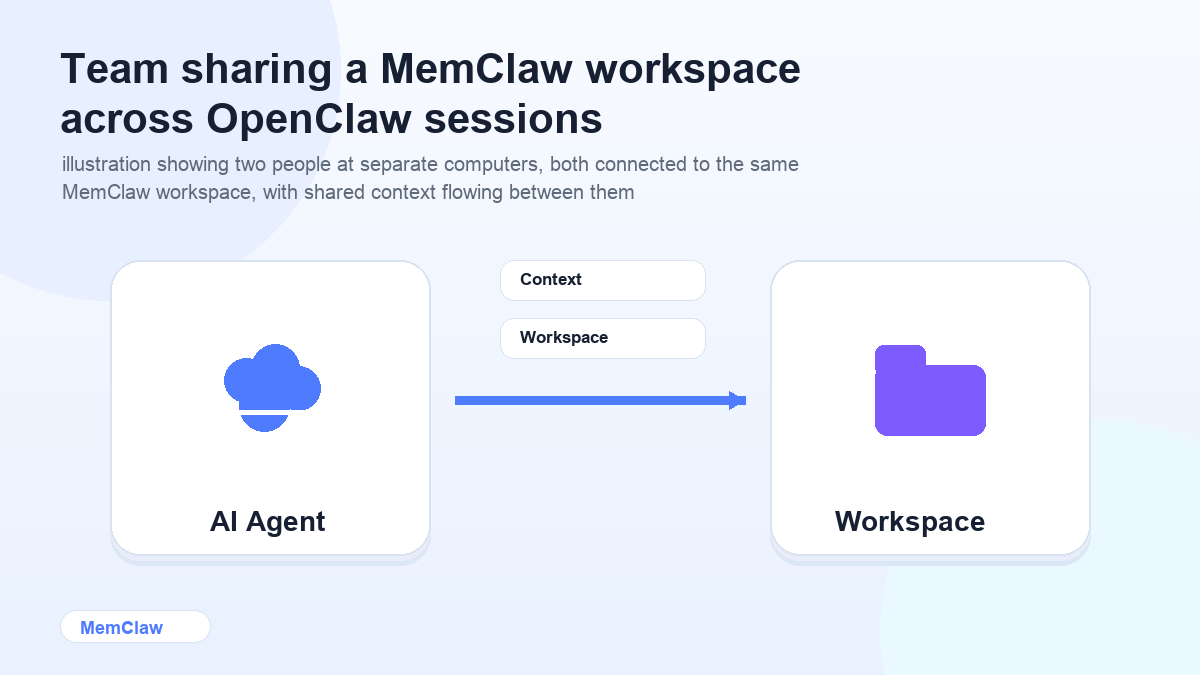
If you're working with other people on the same project — another developer, a designer, a PM — they can open the same MemClaw workspace in their own OpenClaw or Claude Code sessions.
Invite [teammate] to the payment-api workspace
Everyone works from the same context. Decisions made in one person's session are visible in the next person's. No more "wait, what did we decide about the auth flow?" conversations.
Putting It Together: A Session Template
Here's what a well-structured OpenClaw session looks like with these habits in place:
Opening (30 seconds):
Open the [project-name] workspace.
or
Read CONTEXT.md. We're working on [project] today.
During work — log decisions as they happen:
Log this decision: [decision + reasoning]
Closing (60 seconds):
Update task status. Log any decisions we made. What's still in progress?
That's the whole system. The overhead is minimal. The payoff — sessions that start immediately productive instead of spending 15 minutes re-orienting — compounds fast.
Frequently Asked Questions
Does MemClaw work with both OpenClaw and Claude Code?
Yes. Workspaces are agent-agnostic. You can open the same workspace in OpenClaw and Claude Code — context, tasks, and artifacts are shared between them.
What if I don't want to use MemClaw — can I still use these tips?
Absolutely. Tips 1-3, 5, and 7 work with just a CONTEXT.md file and no extra tools. MemClaw makes the workflow smoother, but the core habits work without it.
How long does context restoration take with MemClaw?
About 8 seconds for a typical workspace. The agent reads the workspace, acknowledges the current state, and is ready to work.
Can I use these tips with other AI agents besides OpenClaw?
The habits (context loading, decision logging, session rituals) apply to any AI agent. The MemClaw workspace integration works specifically with OpenClaw and Claude Code.
The Short Version
Load context before you start. Log decisions as you make them. Update task state before you close. Keep one project per session.
These four habits turn OpenClaw from a powerful-but-forgetful tool into a reliable project partner. Add persistent workspaces when you're running enough projects that manual context files become a burden.
Ready to stop re-briefing OpenClaw every session? Set up persistent workspaces with MemClaw →