How to Install MemClaw in Claude Code (Step-by-Step)
MemClaw adds persistent project workspaces to Claude Code. Each workspace stores your project's context — stack, decisions, task state — so the agent knows exactly where things stand at the start of every session.
This guide covers the full installation from scratch. The whole process takes under 5 minutes.
What You'll Need
- Claude Code installed and working
- A Felo API key (free at felo.ai/settings/api-keys )
- A terminal
Step 1: Get Your Felo API Key
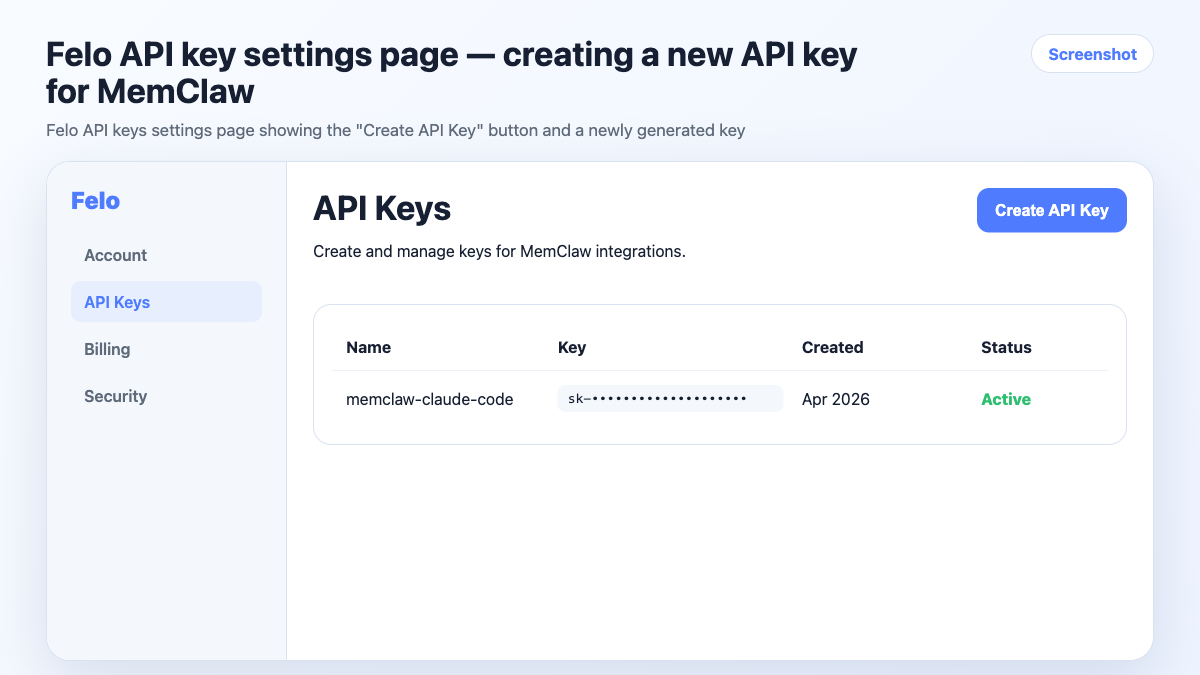
Go to felo.ai/settings/api-keys and create an API key. Copy it — you'll need it in the next step.
Step 2: Set the API Key in Your Environment
Add the key to your shell environment:
export FELO_API_KEY="your-api-key-here"
To make this permanent (so you don't have to set it every session), add it to your shell config:
For zsh (macOS default):
echo 'export FELO_API_KEY="your-api-key-here"' >> ~/.zshrc
source ~/.zshrc
For bash:
echo 'export FELO_API_KEY="your-api-key-here"' >> ~/.bashrc
source ~/.bashrc
Step 3: Install MemClaw in Claude Code
With Claude Code open, run:
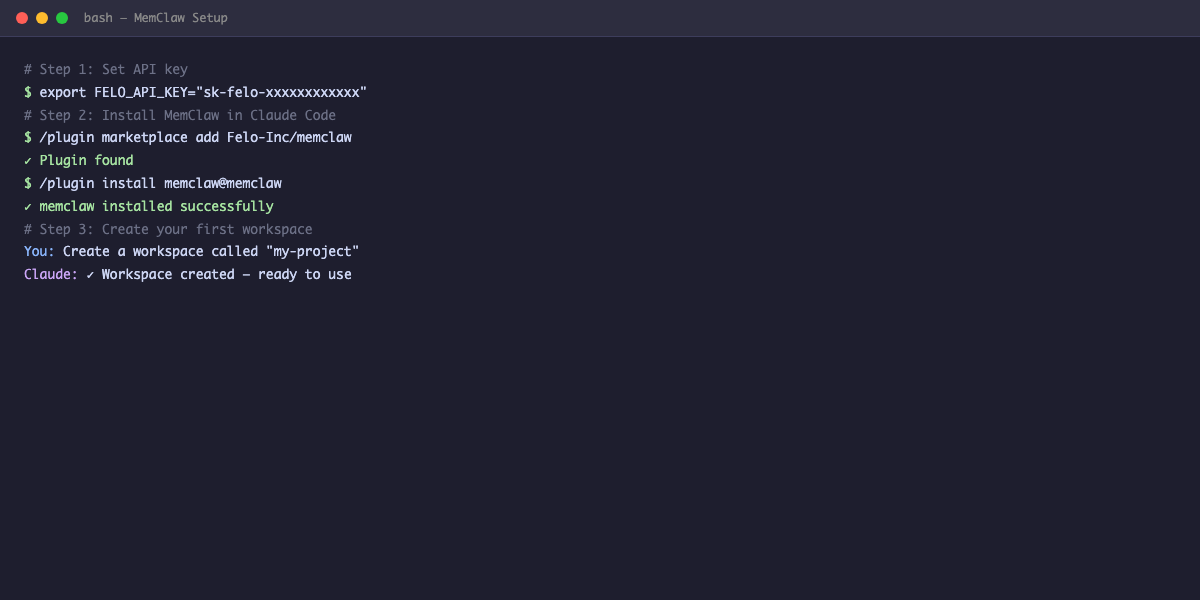
/plugin marketplace add Felo-Inc/memclaw
/plugin install memclaw@memclaw
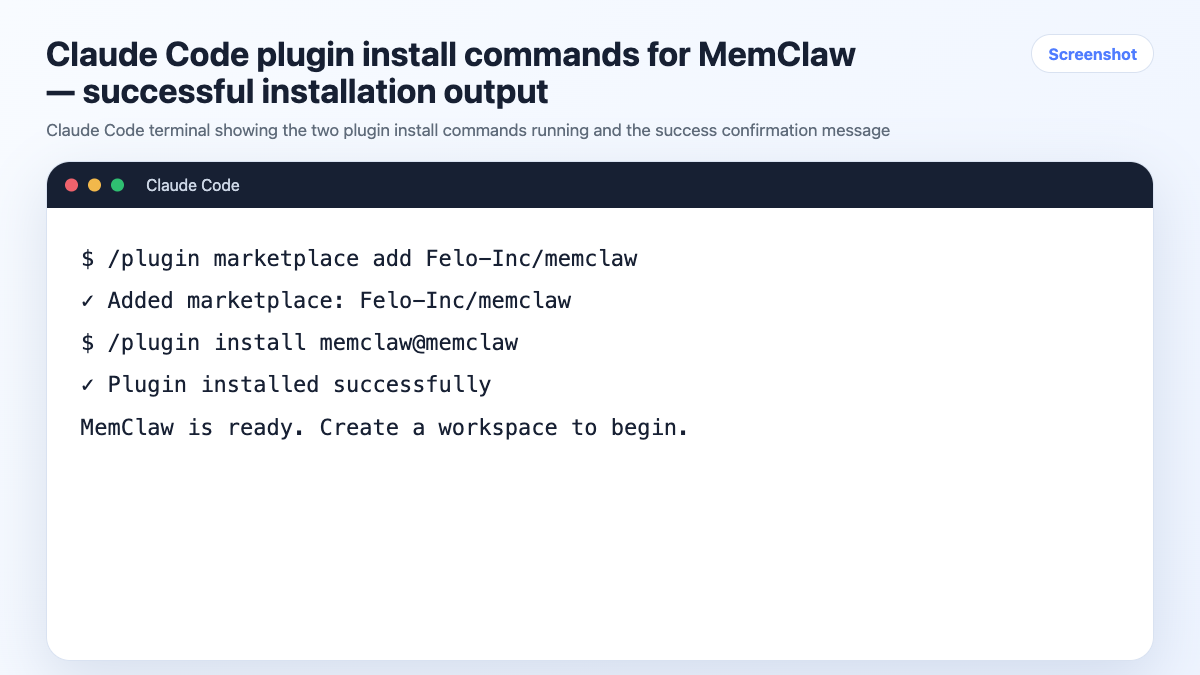
Claude Code will confirm the installation. If you see an error, check that your FELO_API_KEY is set correctly in the current terminal session.
Step 4: Create Your First Workspace
Tell the agent to create a workspace for your project:
Create a workspace called "my-project"
Use a name that's easy to remember and type. Hyphens work well for multi-word names: client-dashboard, payment-api, side-project.
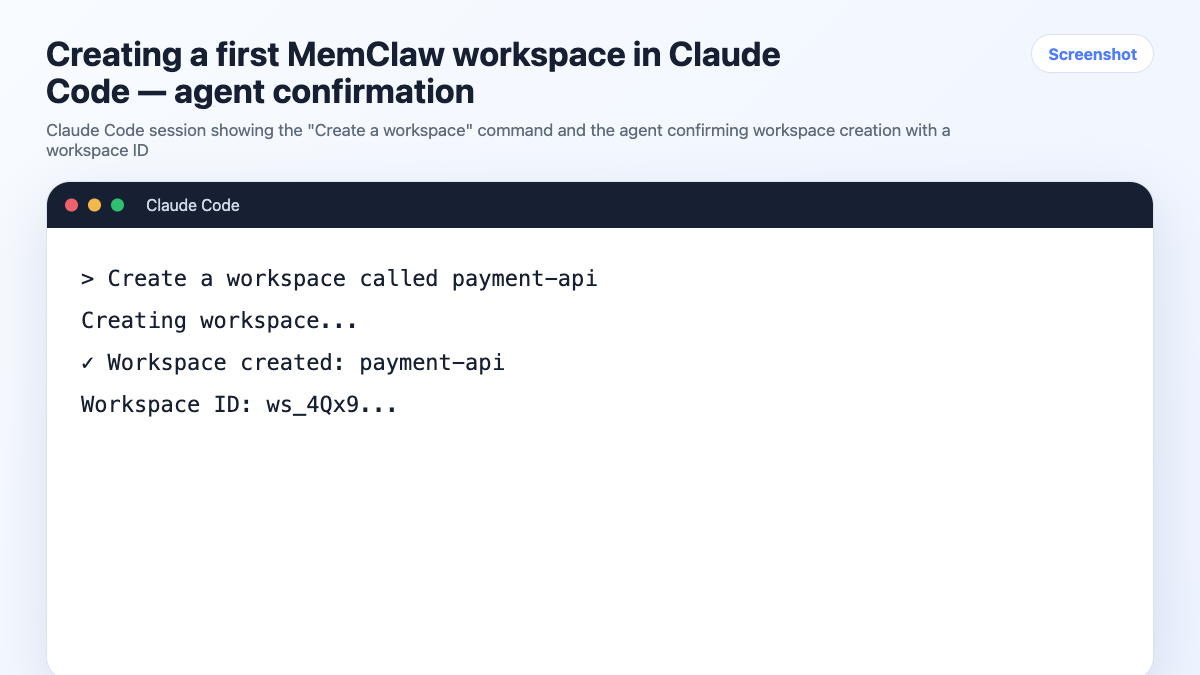
The agent creates the workspace and confirms. That's it — MemClaw is installed and your first workspace is ready.
Step 5: Open the Workspace at Session Start
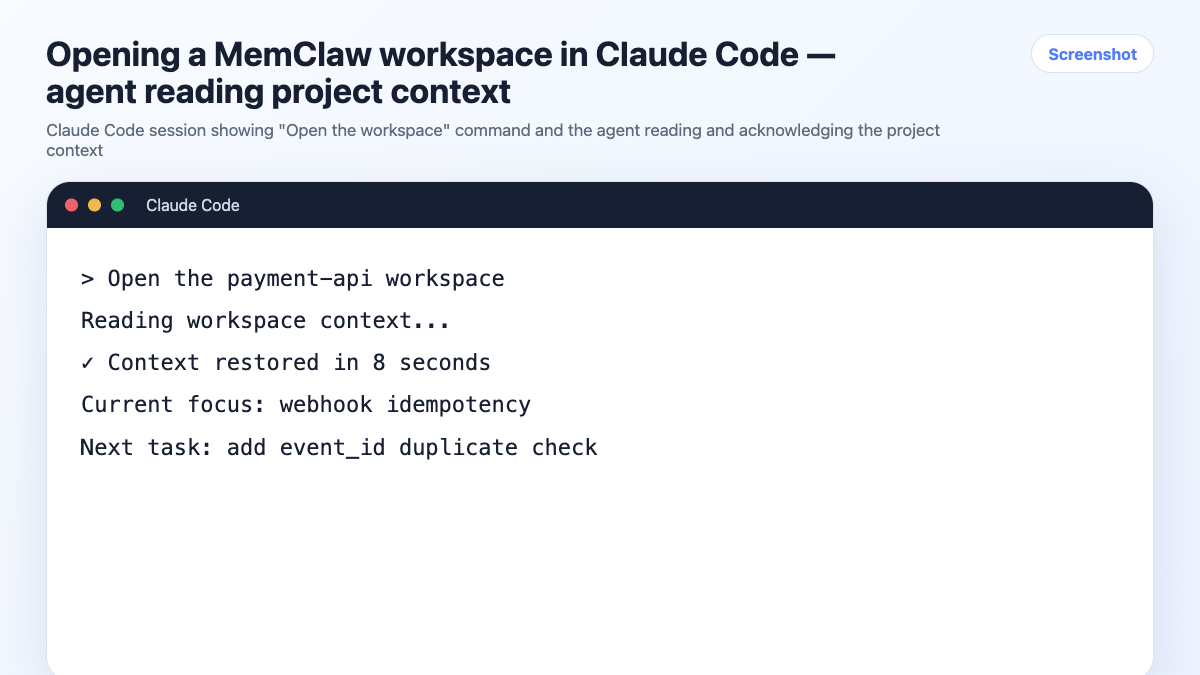
From now on, start each session by opening the workspace:
Open the my-project workspace
The agent reads the workspace — current task state, decisions, project background — and is ready to work. No re-briefing needed.
What Happens Automatically
Once a workspace is open, MemClaw works in the background:
Decision logging: When you make a significant decision, tell the agent to log it:
Log this decision: we're using Paddle for payments, not Stripe.
Task tracking: As you work, the agent tracks what's in progress and what's done. You can also update it explicitly:
Mark the auth flow as done. Add "webhook handler" as in progress.
Artifact storage: Save reference material to the workspace:
Save this as an artifact called "api-spec": [paste content]
Context restoration: Every time you open the workspace, all of this is available immediately.
Creating Workspaces for Multiple Projects
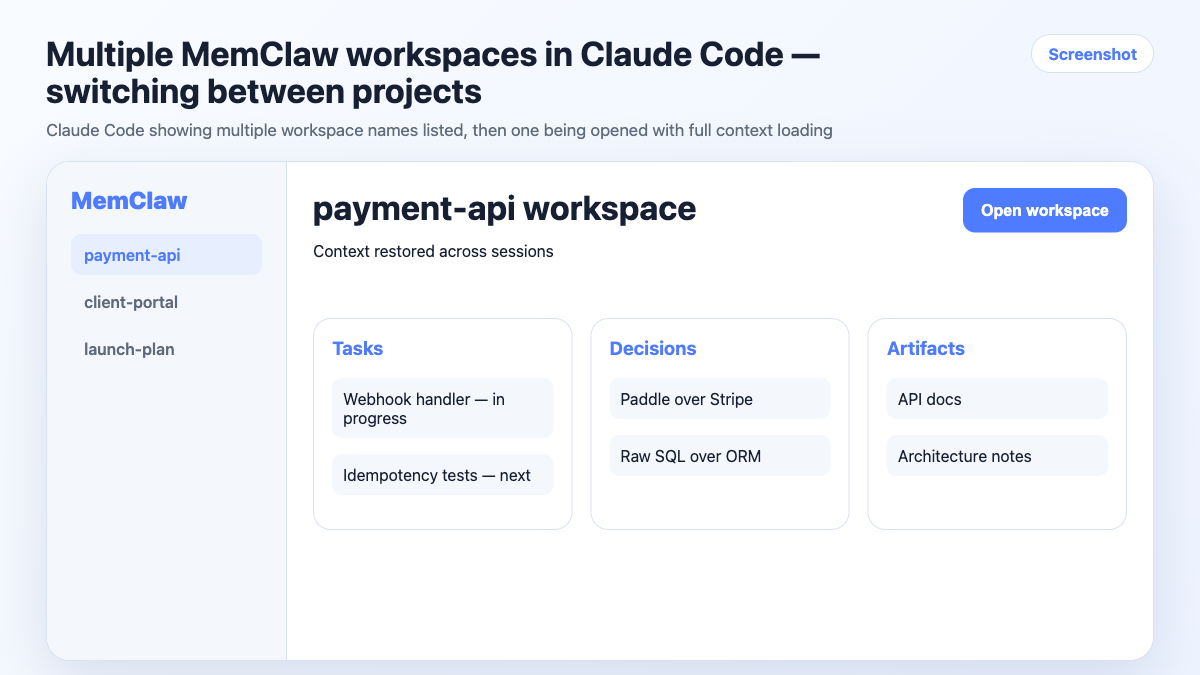
Create one workspace per project:
Create a workspace called "client-a-dashboard"
Create a workspace called "client-b-api"
Create a workspace called "internal-tools"
Each workspace is completely isolated. Opening client-a-dashboard gives the agent Client A's context only — no bleed from other projects.
To switch projects, close the current session and open a new one:
Open the client-b-api workspace
Troubleshooting
"Plugin not found" error
Make sure you're running the commands inside an active Claude Code session, not in a regular terminal. The /plugin commands are Claude Code slash commands.
"API key invalid" or "Unauthorized" error
Check that FELO_API_KEY is set in the current terminal session:
echo $FELO_API_KEY
If it's empty, set it again and restart Claude Code.
Workspace not found when opening
Workspace names are case-sensitive. If you created my-project, use exactly my-project when opening it. You can ask the agent to list your workspaces:
List my workspaces
Agent doesn't seem to be reading the workspace
Try being more explicit:
Open the my-project workspace and tell me the current task status.
This forces the agent to read and acknowledge the workspace content before proceeding.
Installing MemClaw for OpenClaw
If you use OpenClaw instead of (or in addition to) Claude Code, the installation is different:
bash <(curl -s https://raw.githubusercontent.com/Felo-Inc/memclaw/main/scripts/openclaw-install.sh)
The same workspaces work across both agents. A workspace created in Claude Code can be opened in OpenClaw and vice versa.
Frequently Asked Questions
Is MemClaw free?
Check the current pricing at memclaw.me . API key required from Felo.
Can I use MemClaw without a Felo API key?
No. The API key is required for workspace storage and retrieval.
What happens to my workspaces if I uninstall MemClaw?
Your workspaces are stored in Felo's infrastructure. Uninstalling the plugin removes the Claude Code integration, but your workspace data remains accessible. Reinstall the plugin to reconnect.
Can I share a workspace with a teammate?
Yes. Tell the agent:
Invite [teammate's email] to the my-project workspace
They'll need their own Felo API key and MemClaw installation.
How many workspaces can I create?
Check current limits at memclaw.me . For most individual workflows, there's no practical limit.
Next Steps
With MemClaw installed, the key habit is simple: open the workspace at the start of every session, log decisions as you make them, and update task status before you close.
That's the whole workflow. The overhead is minimal; the payoff — sessions that start immediately productive — compounds fast.
Questions or issues? Check the MemClaw GitHub repo or open an issue there.